
Save Keeper Vita: Difference between revisions
More actions
Created page with "{{Infobox Vita Homebrews |title=Save Keeper |image=SaveKeeperVita.png |description=PS Vita save backup manager with Google Drive sync - QR sign-in, timestamped snapshots, multi-device. |author=falkenhawk |lastupdated=2026/07/05 |type=Utilities |version=1.0.0 |license=GPL-3.0 |download=https://dlhb.gamebrew.org/vitahomebrews/SaveKeeperVita.7z |website=https://www.reddit.com/r/vitahacks/comments/1unp5ey/save_keeper_back_up_and_sync_saves_via_google/ |source=https://github...." |
No edit summary |
||
| Line 23: | Line 23: | ||
== Features == | == Features == | ||
* Creates timestamped ZIP snapshots of Vita, game card, and PSP/Adrenaline saves | * Creates timestamped ZIP snapshots of Vita, game card, and PSP/Adrenaline saves | ||
* Uploads snapshots to a | * Uploads snapshots to a <code>PSV Saves</code> folder in your own Google Drive | ||
* Downloads and restores snapshots on any of your devices, so a save made on one Vita can be picked up on another Vita or a PS TV | * Downloads and restores snapshots on any of your devices, so a save made on one Vita can be picked up on another Vita or a PS TV | ||
* Shows your games in a grid with real titles and icons, grouped into Vita / Homebrew / PSP tabs | * Shows your games in a grid with real titles and icons, grouped into Vita / Homebrew / PSP tabs | ||
| Line 29: | Line 29: | ||
* Signs in to Google by scanning a QR code with your phone - no typing on the Vita, and you stay signed in until you disconnect | * Signs in to Google by scanning a QR code with your phone - no typing on the Vita, and you stay signed in until you disconnect | ||
* Keeps multiple snapshots per game, so you can go back to an older save at any time | * Keeps multiple snapshots per game, so you can go back to an older save at any time | ||
* Before a restore overwrites anything, the current save is snapshotted automatically (shown as | * Before a restore overwrites anything, the current save is snapshotted automatically (shown as <code>[AUTO]</code>), unless an identical backup already exists | ||
== Installation == | == Installation == | ||
'''What you need:''' | '''What you need:''' | ||
* A PS Vita or PS TV with HENkaku / h-encore homebrew enabled | * A PS Vita or PS TV with HENkaku / h-encore homebrew enabled | ||
* "Enable unsafe homebrew" turned on in HENkaku settings (the app reads save folders and the system app database) | * "Enable unsafe homebrew" turned on in HENkaku settings (the app reads save folders and the system app database) | ||
* VitaShell (or another way to install a VPK) | * VitaShell (or another way to install a VPK) | ||
* A Google account and about ten minutes for the one-time Google setup | * A Google account and about ten minutes for the [https://github.com/falkenhawk/vita-save-keeper#google-drive-setup-one-time one-time Google setup] | ||
'''Install:''' | '''Install:''' | ||
* Copy <code>save-keeper.vpk</code> to your Vita (for example over FTP to <code>ux0:/data/</code>) | |||
* In [[VitaShell]], press X on the file and confirm the install, including the extended permissions prompt | |||
* Do the one-time Google setup, then launch Save Keeper from the LiveArea | |||
'''Google Drive setup (one time):''' | |||
Save Keeper talks to your own Google Drive, so it needs credentials that belong to you. Follow [https://github.com/falkenhawk/vita-save-keeper/blob/master/docs/google-drive-setup.md docs/google-drive-setup.md] - it walks through creating a free Google Cloud project ("PSV Save Keeper"), enabling the Drive API, and creating a "TVs and Limited Input devices" OAuth client. | |||
The short version of what you end up with: a small <code>google-client.json</code> file at <code>ux0:data/save-keeper/google-client.json</code> on each device. After that, connecting is a single Triangle press: scan the QR code with your phone, approve, done. The sign-in survives app exits, reboots, and reinstalls. | |||
The app can only see files it created itself. It cannot read anything else in your Drive. | |||
== Controls == | == Controls == | ||
D-Pad - Move through the game grid | |||
L/R - Switch between the Vita/Homebrew/PSP tabs | |||
Right Stick - Move through the backup list | |||
Cross - Create a backup (on "New Backup") or restore the selected one (press twice) | |||
Select - Upload the selected local backup to Google Drive | |||
Start - Delete the selected backup, locally or from Drive (press twice) | |||
Square - Change sorting: by name, last saved, or last synced | |||
Triangle - Connect Google Drive, or re-sync the remote backup list | |||
Circle - Cancel a pending confirmation or the Google sign-in | |||
On Japanese-region consoles Cross and Circle swap automatically, following the system setting. Backups from Google Drive show a | On Japanese-region consoles Cross and Circle swap automatically, following the system setting. Backups from Google Drive show a <code>[GD]</code> prefix in the list. Use the PS button to leave the app. | ||
==Screenshots== | ==Screenshots== | ||
| Line 88: | Line 84: | ||
== External links == | == External links == | ||
* GitHub - https://github.com/falkenhawk/vita-save-keeper | |||
* Reddit - https://www.reddit.com/r/vitahacks/comments/1unp5ey/save_keeper_back_up_and_sync_saves_via_google/ | * Reddit - https://www.reddit.com/r/vitahacks/comments/1unp5ey/save_keeper_back_up_and_sync_saves_via_google/ | ||
* VitaDB - https://www.rinnegatamante.eu/vitadb/#/info/1430 | * VitaDB - https://www.rinnegatamante.eu/vitadb/#/info/1430 | ||
Latest revision as of 05:35, 12 July 2026
| Save Keeper | |
|---|---|
 | |
| General | |
| Author | falkenhawk |
| Type | Utilities |
| Version | 1.0.0 |
| License | GPL-3.0 |
| Last Updated | 2026/07/05 |
| Links | |
| Download | |
| Website | |
| Source | |
Back up your PS Vita and PSP save games and sync them to your own Google Drive. Made for people with more than one Vita (or a PS TV) who want their saves to follow them.
Features
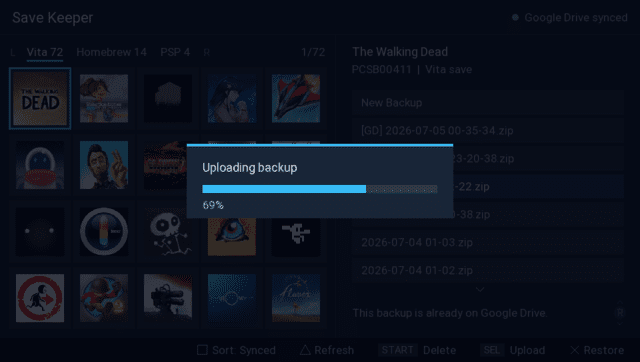
- Creates timestamped ZIP snapshots of Vita, game card, and PSP/Adrenaline saves
- Uploads snapshots to a
PSV Savesfolder in your own Google Drive - Downloads and restores snapshots on any of your devices, so a save made on one Vita can be picked up on another Vita or a PS TV
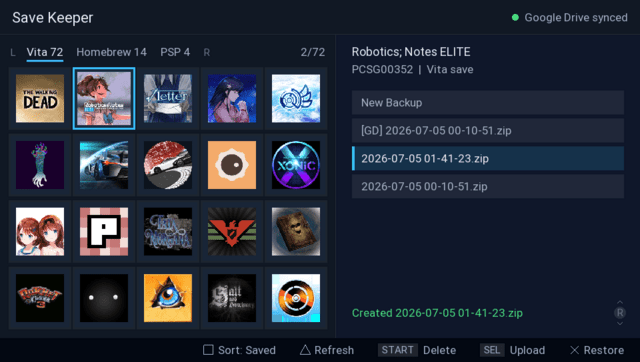
- Shows your games in a grid with real titles and icons, grouped into Vita / Homebrew / PSP tabs
- Sorts by name, by last saved, or by last synced (whatever was uploaded most recently, from any device, bubbles to the top)
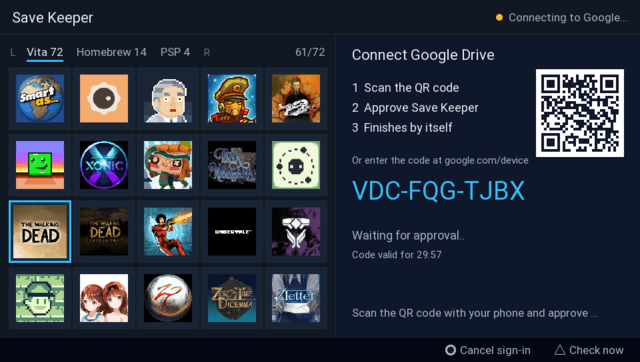
- Signs in to Google by scanning a QR code with your phone - no typing on the Vita, and you stay signed in until you disconnect
- Keeps multiple snapshots per game, so you can go back to an older save at any time
- Before a restore overwrites anything, the current save is snapshotted automatically (shown as
[AUTO]), unless an identical backup already exists
Installation
What you need:
- A PS Vita or PS TV with HENkaku / h-encore homebrew enabled
- "Enable unsafe homebrew" turned on in HENkaku settings (the app reads save folders and the system app database)
- VitaShell (or another way to install a VPK)
- A Google account and about ten minutes for the one-time Google setup
Install:
- Copy
save-keeper.vpkto your Vita (for example over FTP toux0:/data/) - In VitaShell, press X on the file and confirm the install, including the extended permissions prompt
- Do the one-time Google setup, then launch Save Keeper from the LiveArea
Google Drive setup (one time):
Save Keeper talks to your own Google Drive, so it needs credentials that belong to you. Follow docs/google-drive-setup.md - it walks through creating a free Google Cloud project ("PSV Save Keeper"), enabling the Drive API, and creating a "TVs and Limited Input devices" OAuth client.
The short version of what you end up with: a small google-client.json file at ux0:data/save-keeper/google-client.json on each device. After that, connecting is a single Triangle press: scan the QR code with your phone, approve, done. The sign-in survives app exits, reboots, and reinstalls.
The app can only see files it created itself. It cannot read anything else in your Drive.
Controls
D-Pad - Move through the game grid
L/R - Switch between the Vita/Homebrew/PSP tabs
Right Stick - Move through the backup list
Cross - Create a backup (on "New Backup") or restore the selected one (press twice)
Select - Upload the selected local backup to Google Drive
Start - Delete the selected backup, locally or from Drive (press twice)
Square - Change sorting: by name, last saved, or last synced
Triangle - Connect Google Drive, or re-sync the remote backup list
Circle - Cancel a pending confirmation or the Google sign-in
On Japanese-region consoles Cross and Circle swap automatically, following the system setting. Backups from Google Drive show a [GD] prefix in the list. Use the PS button to leave the app.
Screenshots
Changelog
v1.0
- First Release.