
IRdA 3DS: Difference between revisions
From GameBrew
More actions
m Text replacement - "Category:PC utilities for 3DS homebrew" to "" |
No edit summary |
||
| Line 8: | Line 8: | ||
|version=2018 | |version=2018 | ||
|license=Mixed | |license=Mixed | ||
|download=https://dlhb.gamebrew.org/3dshomebrews/ | |download=https://dlhb.gamebrew.org/3dshomebrews/irda.zip Original & Debugged | ||
|website=https://gbatemp.net/threads/android-irda-inputredirection-client-for-android.497604 | |website=https://gbatemp.net/threads/android-irda-inputredirection-client-for-android.497604 | ||
}} | }} | ||
Latest revision as of 11:20, 22 June 2024
| IRdA | |
|---|---|
 | |
| General | |
| Author | Sono |
| Type | PC Utilities |
| Version | 2018 |
| License | Mixed |
| Last Updated | 2018/03/27 |
| Links | |
| Original & Debugged Download | |
| Website | |
IRdA is an InputRedirection client for Android 3.1 and above.
Note: this application has no on-screen controls. This is only for using external controllers via Bluetooth or USB (or built-in controls for those all-in-one gaming tablets).
Features
- Button binding.
- Axis binding.
- Power saving mode*.
- Persistent config.
- "NoDefault" option to disable default Android key press action for unhandled keys.
- No accidental config resetting via recovery-style "yes" selection.
- Autoconnect option on program open.
User guide
Input Redirecting to your controller
- Connect your controller to your android phone in whatever way works (usb or bluetooth).
- Install and start IRdA on your phone.
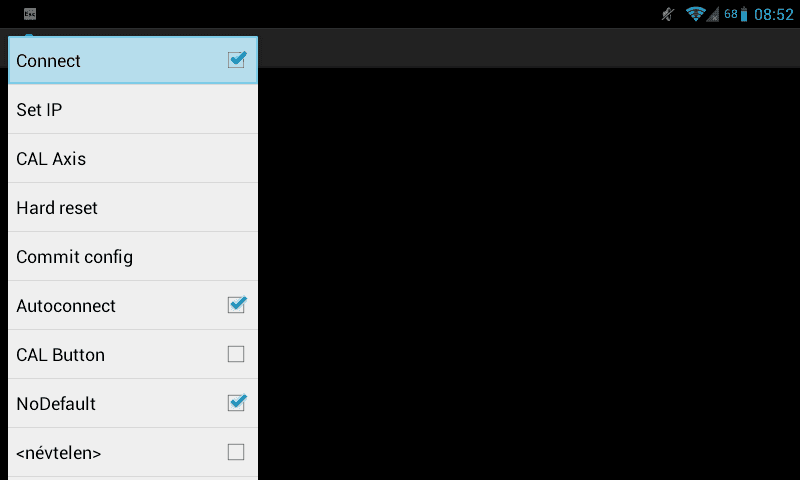
- Check CAL Button and map your controller to the 3DS inputs. Uncheck it when completed.
- Check CAL Axis and bind the analog sticks axis. Cicle Pad is left stick. C-Stick is right stick.
- Start input redirection on your 3DS. Enter Rosalina menu on your 3DS (L+Down+Select) > Miscellaneous options > Start InputRedirection.
- Press B and take note of the IP adress on the top right of your screen.
- Press input IP address in the options in IRdA and write that IP address (both should be on the same network). Select Commit config.
- Exit out of rosalina and you should be able to control your 3DS with the controller.
Retroarch Multiplayer
- Go to settings and input. Scroll down to User 2 and set device to 3ds. Use the latest stable retroarch.
- Start any game with the emulator you want (snes9x2002 has issues with input changing).
- Go to quickmenu and controls. Go to Player 2 and set the corresponding left analog axes as dpad directions.
- Remember how you mapped your controller earlier and scroll down and set L as A and R as B etc.
- Then set Left Analog as the dpad by mapping the respective direction.
- The person using the controller will have to use the analog stick for movement, because the 3DS' Circle Pad won't work as long as it is receiving input from a controller.
- Make sure two controllers are connected for the system you're emulating. Sometimes this is in quickmenu options (i.e. pcsx_rearmed) other times in controls.
- You should be ready to play.
Tutorials are based on this guide by zense.
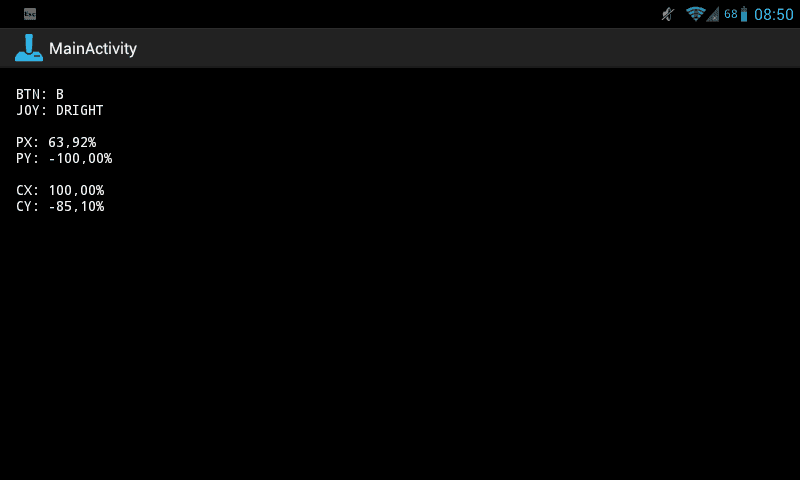
Screenshots
Compatibility
Does not support New 3DS inputs (ZL, ZR, C-Stick).
Known issues
- Rotating the screen restarts the application.
- Input is not pollable in the background.
- Input is not pollable when the screen goes to sleep.
- Some graphics drivers die when entering power save mode*.
- Analog triggers aren't bindable to L/R/ZL/ZR.
- D-Pad behavior is strange.