
VitaRPS5
From GameBrew
More actions
| VitaRPS5 | |
|---|---|
 | |
| General | |
| Author | AAGaming00, ywnico, mauricio-gg |
| Type | Utilities |
| Version | 1.0.2 |
| License | AGPL-3.0 |
| Last Updated | 2025/10/02 |
| Links | |
| Download | |
| Website | |
| Source | |
| Support Author | |
VitakiFork (also known as VitaRPS5) is a fork of ywnico's Vitaki fork, which itself is based on AAGaming's original Chiaki port. This project provides enhanced PlayStation 5 Remote Play functionality for the PS Vita, featuring a redesigned user interface, improved console wakeup flow, and numerous quality-of-life improvements to enhance the streaming experience on the handheld console.
What's New in This Fork
This fork adds the following enhancements to ywnico's vitaki-fork:
- VitaRPS5-Style UI Redesign
- Modern card-based console selection interface
- Professional PlayStation-themed color scheme
- Redesigned PIN entry screen with individual digit display
- Improved visual feedback and animations
- Enhanced Console Wake Flow
- "Waking up console..." screen with animated progress
- 30-second timeout with visual countdown
- Automatic streaming start when console wakes up
- No need to press X twice
- Fixed Controller Input Issues
- Resolved race condition that prevented controller input during streaming
- Properly separated UI and input thread buffer access
- Controllers now work reliably during remote play
- Improved Console Management
- Re-pairing now properly deletes registration data from storage
- Better console name and IP display formatting
- Circle button for cancel (PlayStation convention)
Usage Instructions
Local Connection
- Connect the PS Vita and PS5 (or PS4) to the same WiFi network.
- Log into the same PSN account on both devices.
- Launch Vitaki on the PS Vita and verify PSN ID in settings.
- The console should auto-detect in the interface.
- Register the console via an 8-digit PIN shown on the PS5 under Settings > System > Remote Play > Pair Device.
- After registration, select the console to start Remote Play.
Remote Connection
- Requires static IP and port forwarding; UDP holepunching is not supported.
- Register console locally before setting up remote connection.
- Use the “add remote host” button to add remote IP and connect.
- Note: Vitaki does not display remote host status and connection attempts may require retries if the console is asleep.
Screenshots
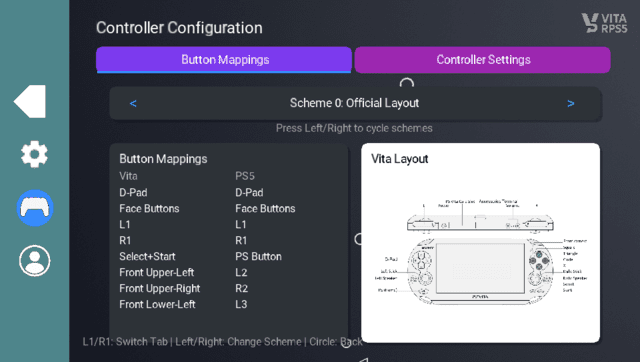
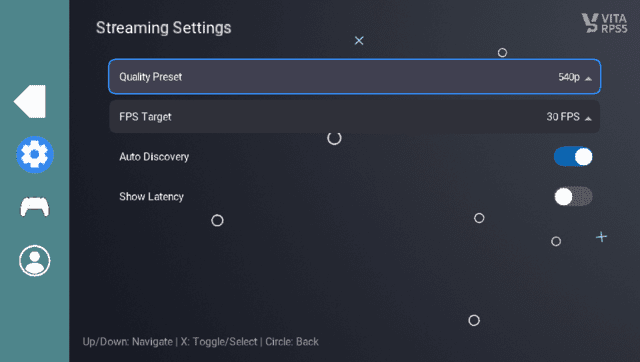
Known issues & troubleshooting
- Latency. On remote connections (not local WLAN), it's especially bad. (Relevant GitHub issue)
- Vitaki may crash with error C2-12828-1 if incompatible plugins such as reRescaler are installed. Thanks to @GuillermoAVeces for identifying this. (Relevant issue).
- Typically only one stream works per launch. If the screen becomes gray and unresponsive, restart Vitaki. (Relevant issue)
- In the past crashes occurred when multiple consoles are on the network, but this has likely been fixed. (Relevant issue).
If problems arise:
- Try restarting Vitaki first.
- Then, try deleting/renaming the config file (
ux0:data/vita-chiaki/chiaki.toml). - If that doesn't help, create a new issue (or comment on an existing issue).
Changelog
v1.0.2
v1.0.1
- First Release.