
Simple Mod Alchemist Switch
More actions
| Simple Mod Alchemist | |
|---|---|
 | |
| General | |
| Author | gtiersma |
| Type | Utilities |
| Version | 1.1 |
| License | GPL-3.0 |
| Last Updated | 2026/01/29 |
| Links | |
| Download | |
| Website | |
| Source | |
| Support Author | |
Simple Mod Alchemist is a Nintendo Switch homebrew app that lets you quickly enable, disable, and swap game mods stored on your SD card, with a focus on speed and stability.
It is a fork of SimpleModManager, featuring a redesigned user interface and performance optimizations for large mod collections and frequent mod switching.
The application targets Atmosphère CFW on Nintendo Switch and supports LayeredFS-style mods located in the mods folder on the SD card.
Features
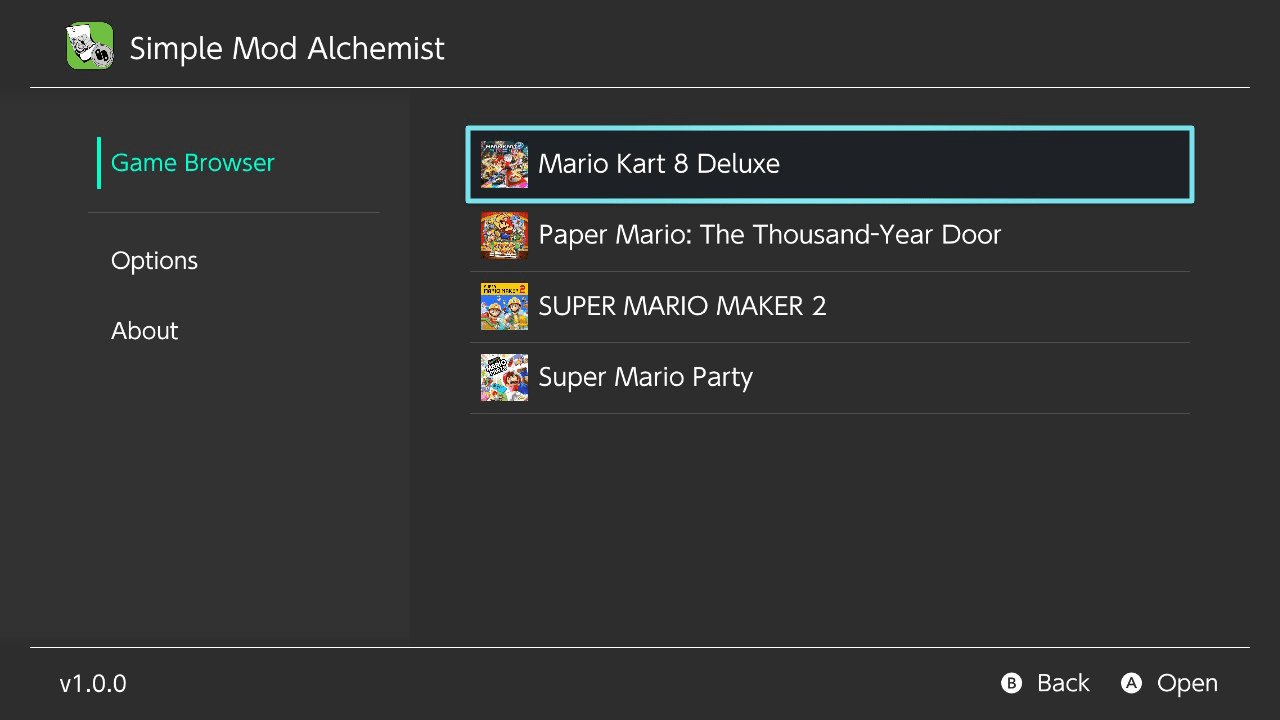
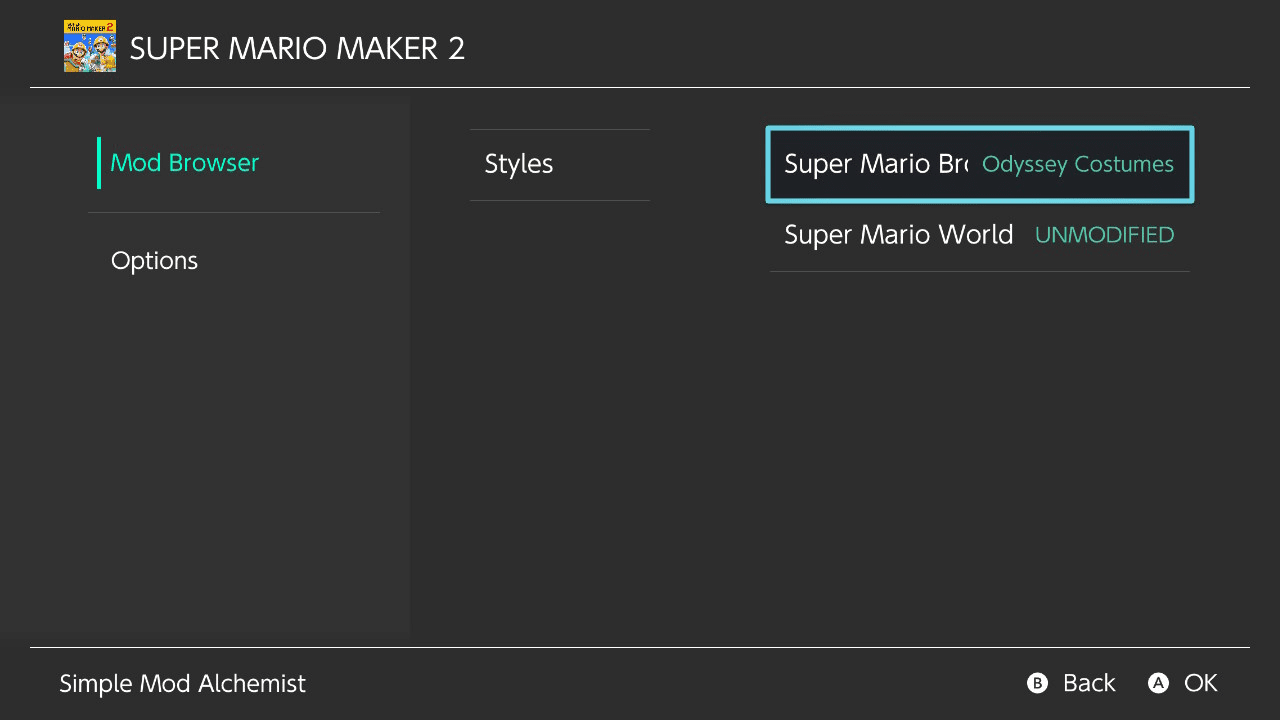
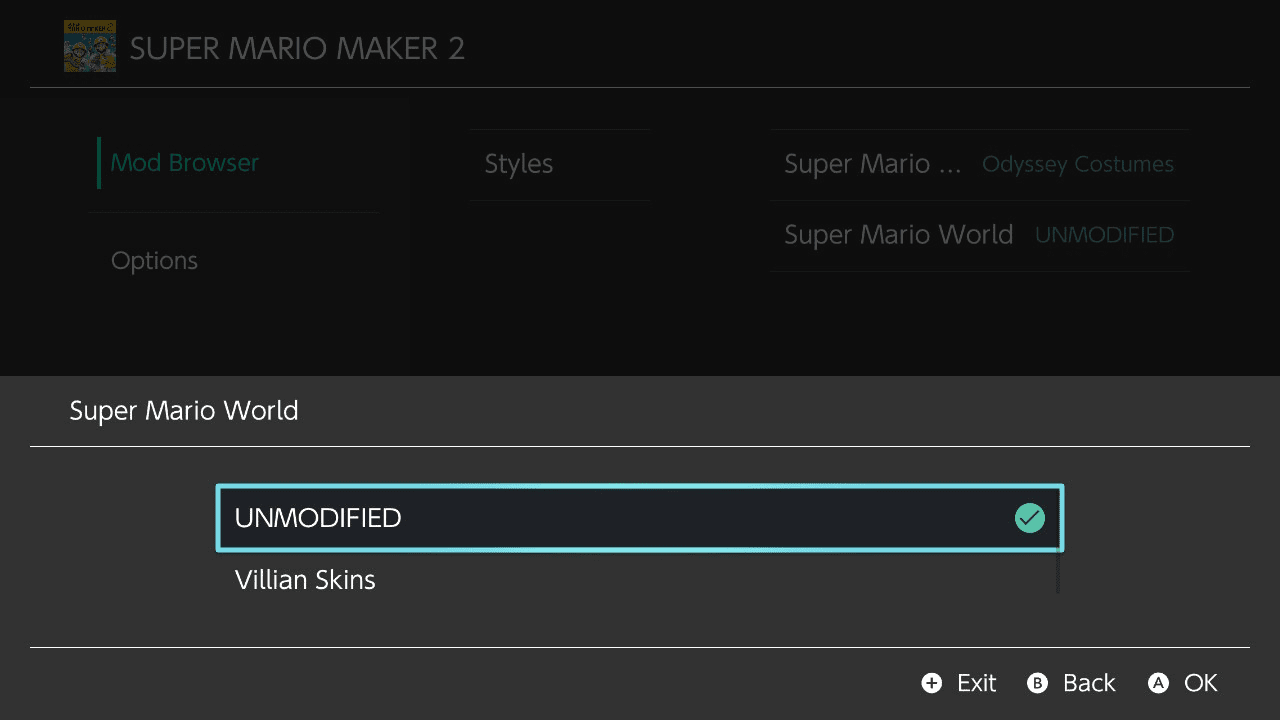
- Intuitive UI for changing mods
- Mods are categorized in groups and by what they replace
- Mod files are moved, not copied
- This makes switching between large files seemingly instant
- Can automatically bring over mods from SimpleModManager to start using right away
- Scalable - works with lists of hundreds of mods
- Change mods at random
- Set how likely each mod gets picked at random
- More to come!
Quick Start (tl;dr)
- Extract the contents of the latest release to the root of your SD card.
- In the
mod_alchemyfolder that now exists on your SD root, create a folder with the name of the game's title ID. - Within that folder, create folders for each group you want to categorize your mods in. Example:
mod_alchemy/<title_id>/Characters/ - Within those folders, create folders for each thing in the game that you plan to replace with a mod. Example:
mod_alchemy/<title_id>/Characters/Mario/ - Within those folders, create folders for each mod you have. Example:
mod_alchemy/<title_id>/Characters/Mario/Spongebob/ - Within those folders, move each mod's folder structure into its corresponding folder. The folder structure should typically begin with the
romfsfolder (which should then contain the other folders and files that comprise the mod). - Have fun!
- If this Quick Start guide doesn't make sense, read the detailed instructions below for a more thorough explanation.
Installation
- This assumes you already have a Nintendo Switch set up with Atmosphere CFW installed.
- Download the latest release of Simple Mod Alchemist, extracting its contents to the root of your SD card.
- There should now be a
mod_alchemyfolder in your SD card root. - In
mod_alchemy, create a folder. Give that folder the name of a game's title ID you want to mod. You can find the title ID for the game at this website: NSWDB - In the folder you created in step 4, create a folder for each "group" you wish to categorize your mods in. Some typical examples of names you may want to use would be "Characters", "Levels", "Music", etc.
- In each of those folders created in step 5, create a folder for each thing you want to mod in a game. For example, if you have a mod that would replace Mario in a game, you would want to create a folder named "Mario" in a folder like
mod_alchemy/<title_id>/Characters/. Then create folders for the names of any other characters you have mods for in theCharactersfolder. - In each of those folders created in step 6, create a folder for each mod you have. For example, if you have a mod that replaces Mario with Spongebob, you would want to created a folder named "Spongebob" in a folder like
mod_alchemy/<title_id>/Characters/Mario/. Then create folders for the names of any other mods you have that replace Mario in theMariofolder. - In each of those folders created in step 7, place the folders with the files for each mod in that folder. For example, if you have a mod that replaces Mario with Spongebob, you would want to place the folder structure for the "Spongebob" mod in a folder like
mod_alchemy/<title_id>/Characters/Mario/Spongebob/. In most cases, a mod's file structure should start with a folder namedromfs, so there should be amod_alchemy/<title_id>/Characters/Mario/Spongebob/romfs/folder which would then contain the rest of the folders and files that make up the mod. The folder structure should match the game's filesystem. - Remove any files that are currently in the
/atmosphere/contents/<title_id>/folder that may conflict with files from any mods that you set up in step 8. If you want to keep them, move them to a mod folder withinmod_alchemycreated in the manner described in steps 5-8. If you don't feel very sure of what you're doing, it's a good idea to create a backup of/atmosphere/contents/<title_id>/. - Create a backup of the
mod_alchemy/<title_id>/. The app operates by moving files betweenmod_alchemy/<title_id>/and/atmosphere/contents/<title_id>/. If you ever disable all the mods through the app, it should bring all the mod files back to the folders undermod_alchemy/<title_id>/, but I make no guarantee that there won't be a problem that will prevent that, so I recommend backing up those folders and files before you start using Simple Mod Alchemist just to be safe. - You're ready to use Simple Mod Alchemist! You can access it the same as you would any other Switch homebrew application.
Adding Mods
Mods can be added to the app at any time by following the same instructions listed above.
Deleting Mods
If there ever is a mod you're using that you want to delete permanently, make sure to disable that mod in Simple Mod Alchemist first if it isn't already disabled. This will make sure all files for that mod are returned to their original locations within the folders in mod_alchemy.
Once you're sure it's disabled, deleting the mod is as easy as deleting the mod_alchemy/<title_id>/<group_name>/<thing_being_modded>/<mod_name> folder belonging to it from your SD card.
Disabling the mod is necessary because enabled mods have their files mixed in with all the other enabled mod files within the /atmosphere/contents/<title_id>/ folder. Disabling the mod will move its files back to the original folder they were in: mod_alchemy/<title_id>/<group_name>/<thing_being_modded>/<mod_name>, that way, when you delete the folder, you can be sure all files for that mod are being deleted as well.
Changing Mods at Random
Have the mods be picked for you at random.
They can be randomly changed by an individual mod, by group, or by an entire game.
To do so, highlight a game, group or individual mod and press X.
The odds of each mod being chosen at random can also be adjusted. Highlight a mod and press Y to do so.
Screenshots
|
|
Changelog
v1.1
- Feature: When having the app randomly pick the mods, the likelihood of each mod can now be adjusted.
- Press Y on a mod to show a dialog for adjusting the probabilities.
- ISSUE-4 (Start games from within the app)
- When viewing a game's mods, that specific game can now be launched directly from the app by pressing +.
- Fix: ISSUE-10 (Some mod files can get "stuck" active with some mods that have multiple files)
- Fix: ISSUE-8 (remove contents after disable)
- Fix: When migrating mods from SimpleModManager, there should no longer be a risk of left-over files or files that failed the migration being deleted.
- ISSUE-13 (Make automatic SMM mod migration feature more obvious)
- When Simple Mod Alchemist is started when there are no game folders found, a button is showed front-and-center for migrating mods from SimpleModManager.
- Fix: For those that may have mods that were used in State Alchemist, mods that were "random locked" from that app will no longer be stuck locked in Simple Mod Alchemist. Locking status is now ignored.
- There is currently no plan to implement "random locking" in Simple Mod Alchemist because this app is capable of randomly changing mods individually or by group. This should be better in most cases, but if there's a demand for locking to return, that could be considered.
- Added scrolling to the About tab. It's no longer so cramped.
- Label/description clarity/conciseness improvements.
v1.0.1
- The app was recompiled using the latest version of libnx for support of Atmosphère v1.10.0.
- Feature: Mods can now be changed at random.
- Individually, by group or by game
- This can be done by pressing X on a mod, group or game.
- This can also be done through the new option in the game settings.
- A working progress bar was created. It's used in the dialogs that appear when:
- Randomly changing multiple mods at a time.
- Disabling all mods in a game.
- Bringing over mods from SimpleModManager.
- Fix: The game list now refreshes after bringing over mods from SimpleModManager. No need to relaunch the app.
- When bringing over mods from SimpleModManager, no longer will any of SimpleModManager's folders be deleted under any circumstance unless they contain no files after the migration.
- Minor improvements were made to the layout of dialogs.
v1.0
- First Release.
Special Thanks
- SciresM and the other contributors for creating and maintaining LayeredFs and Atmosphere
- devkitPro for creating libnx
- Nadrino for creating SimpleModManager
- Natinusala, xfangfang and any other contributors to Borealis
External links
- GitHub - https://github.com/gtiersma/Simple_Mod_Alchemist
- Homebrew App Store - https://hb-app.store/switch/SimpleModAlchemist