
Psp2wpp-remote-conf Vita: Difference between revisions
From GameBrew
More actions
No edit summary |
No edit summary |
||
| Line 22: | Line 22: | ||
== User guide == | == User guide == | ||
Important notes: | |||
* To use this tool, you will also need [[Psp2waveviewer Vita|psp2waveviewer]]. | * To use this tool, you will also need [[Psp2waveviewer Vita|psp2waveviewer]]. | ||
* Follow the instructions in the [https://github.com/Princess-of-Sleeping/psp2waveviewer/?tab=readme-ov-file#feature psp2wpp README] for remote configuration. | * Follow the instructions in the [https://github.com/Princess-of-Sleeping/psp2waveviewer/?tab=readme-ov-file#feature psp2wpp README] for remote configuration. | ||
* Temporarily disable plugins like [[UDCD UVC Vita|udcd-uvc.skprx]] or [[PSVita_RE_Tools#PSMLogUSB|PSMLogUSB.skprx]] if using USB on your PS Vita. | * Temporarily disable plugins like [[UDCD UVC Vita|udcd-uvc.skprx]] or [[PSVita_RE_Tools#PSMLogUSB|PSMLogUSB.skprx]] if using USB on your PS Vita. | ||
Instructions: | |||
* Run psp2wpp-remote-conf.exe and connect your PS Vita and PC via USB. | * Run psp2wpp-remote-conf.exe and connect your PS Vita and PC via USB. | ||
* Start psp2waveviewer on your PS Vita in remote configuration mode. | * Start psp2waveviewer on your PS Vita in remote configuration mode. | ||
* If the connection becomes unstable due to a Bad sequence, unplug and reconnect the USB. | * If the connection becomes unstable due to a Bad sequence, unplug and reconnect the USB. | ||
* You can use the saved waveparam.bin file with the [[Psp2wpp Vita|psp2wpp plugin]]. | * Note: You can use the saved waveparam.bin file with the [[Psp2wpp Vita|psp2wpp plugin]]. | ||
USB Driver for PC: | USB Driver for PC: | ||
Latest revision as of 06:47, 31 March 2024
| psp2wpp-remote-conf | |
|---|---|
 | |
| General | |
| Author | Princess-of-Sleeping |
| Type | PC Utilities |
| Version | 1.0 |
| License | MIT License |
| Last Updated | 2024/02/29 |
| Links | |
| Download | |
| Website | |
| Source | |
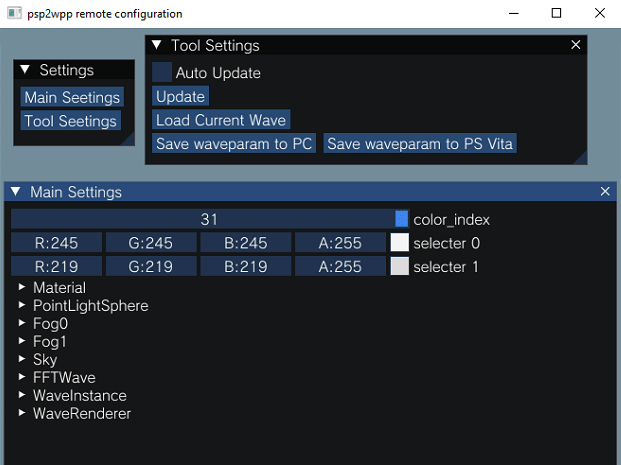
psp2wpp-remote-conf is a Windows tool that allows you to configure waveparam on your PS Vita by connecting it via USB.
User guide
Important notes:
- To use this tool, you will also need psp2waveviewer.
- Follow the instructions in the psp2wpp README for remote configuration.
- Temporarily disable plugins like udcd-uvc.skprx or PSMLogUSB.skprx if using USB on your PS Vita.
Instructions:
- Run psp2wpp-remote-conf.exe and connect your PS Vita and PC via USB.
- Start psp2waveviewer on your PS Vita in remote configuration mode.
- If the connection becomes unstable due to a Bad sequence, unplug and reconnect the USB.
- Note: You can use the saved waveparam.bin file with the psp2wpp plugin.
USB Driver for PC:
- If psp2wpp-remote-conf doesn't detect the connection between your PS Vita and PC via USB, you might need to install drivers like libusb.
- Install the driver using your preferred method.
- While installing the driver, your PS Vita will freeze completely. Do not turn it off until the driver installation is finished on your PC.
- After the driver installation is complete, press and hold the power button on your PS Vita to force a restart.
Screenshots
Changelog
v1.0
- First Release.
Credits
- Paddel06 for Beta testing.
- Cat And CreepNT for USB helping.
- Dear ImGui for Settings GUI.