ImpulseDS: Difference between revisions
From GameBrew
More actions
Created page with "{{Infobox homebrew | title = ImpulseDS | image = https://dlhb.gamebrew.org/dshomebrew/impulseds.png | type = Racing | version = 0.1 alpha | licence..." |
No edit summary |
||
| Line 50: | Line 50: | ||
'''Resizing knot widths:''' | '''Resizing knot widths:''' | ||
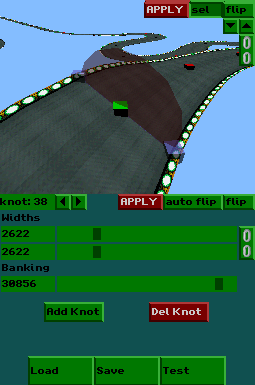
* Once a knot has been selected, it can be resized in both the GUI and 3D displays. | * Once a knot has been selected, it can be resized in both the GUI and 3D displays. | ||
* To resize the knot's widths in the GUI display, drag one of the width sliders. | ** To resize the knot's widths in the GUI display, drag one of the width sliders. | ||
* To resize the knot's widths in the 3D display, click on one of the blue boxes that appears next to the selected knot and drag it. | ** To resize the knot's widths in the 3D display, click on one of the blue boxes that appears next to the selected knot and drag it. | ||
* Knots can be resized together if the chain toggle button is enabled. This is the button to the right of width sliders in the GUI view, and the button in the same position in the 3D view. | * Knots can be resized together if the chain toggle button is enabled. This is the button to the right of width sliders in the GUI view, and the button in the same position in the 3D view. | ||
* Click the Apply button to apply the changes (can takes a few seconds on the DS so please be patient). | * Click the Apply button to apply the changes (can takes a few seconds on the DS so please be patient). | ||
| Line 58: | Line 58: | ||
'''Rotating knots:''' | '''Rotating knots:''' | ||
* Once a knot has been selected, it can be rotated in both the GUI and 3D displays. | * Once a knot has been selected, it can be rotated in both the GUI and 3D displays. | ||
* To rotate the knot in the GUI display, drag the banking slider. | ** To rotate the knot in the GUI display, drag the banking slider. | ||
* To rotate the knot in the 3D display, click and drag the red circle that appears around the selected knot. | ** To rotate the knot in the 3D display, click and drag the red circle that appears around the selected knot. | ||
* Click the Apply button to apply the changes (can takes a few seconds on the DS so please be patient). | * Click the Apply button to apply the changes (can takes a few seconds on the DS so please be patient). | ||
* Reselecting the knot in the 3D view or selecting the knot id label in the GUI view (top-left) will remove any changes. | * Reselecting the knot in the 3D view or selecting the knot id label in the GUI view (top-left) will remove any changes. | ||