Level Editor DS: Difference between revisions
More actions
No edit summary |
|||
| (3 intermediate revisions by the same user not shown) | |||
| Line 137: | Line 137: | ||
L - Go to copy mode | L - Go to copy mode | ||
R - Go to monster mode | |||
'''Copy mode:''' | '''Copy mode:''' | ||
L+Touchscreen - Copy a structure | L+Touchscreen - Copy a structure (lift up the stylus and swipe to another place to clone the structure) | ||
Up - Swap screen | Up - Swap screen | ||
L - Go to draw mode | L - Go to draw mode | ||
R - Go to monster mode | |||
'''Monster mode:''' | |||
L+Touchscreen or D-Pad - Move the sprite on the screen | |||
Y - Copy sprite | |||
X - Delete sprite | |||
A/B - Cycle through state numbers | |||
== Screenshots == | == Screenshots == | ||
https://dlhb.gamebrew.org/dshomebrew2/images/leds2.png | https://dlhb.gamebrew.org/dshomebrew2/images/leds2.png | ||
Latest revision as of 14:15, 8 March 2025
| Level Editor DS | |
|---|---|
 | |
| General | |
| Author | PypeBros |
| Type | Game Engine |
| Version | 01 |
| License | Mixed |
| Last Updated | 2018/05/05 |
| Links | |
| Download | |
| Website | |
| Source | |
LEDS is a map design tool released as part of dsgametools, a suite of developer tools for creating games on and for the Nintendo DS.
Built on a custom 2D game engine, the collection includes (you can find the latest version of the package here):
- runME (the uploader/downloader/launcher tool)
- Level Editor DS (the level editor)
- Sprite Editor DS (the sprite editor)
- AnimEDS (the animation editor)
Installation
Create a new directory named "moving" at the root of your media card (usually SD or micro-SD) and copy the .spr files here.
Copy LevelEditor.nds on the card wherever you like it best (requires DLDI).
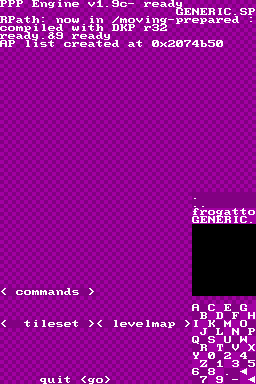
Boot the console and launch LevelEditor. You'll see a small <go> button at the bottom of the screen. touch it with the stylus or just press the Start button of your DS.
Controls
Draw mode:
D-Pad - Move the cursor
Touchscreen - Place selected tile
L+D-Pad - Navigate the level
Start - Return to the file window
Select - Toggle between foreground and background editing
B - Switch between 16x16 and 8x8 pixel blocks
L+Touchscreen - Reuse a tile
L - Go to copy mode
R - Go to monster mode
Copy mode:
L+Touchscreen - Copy a structure (lift up the stylus and swipe to another place to clone the structure)
Up - Swap screen
L - Go to draw mode
R - Go to monster mode
Monster mode:
L+Touchscreen or D-Pad - Move the sprite on the screen
Y - Copy sprite
X - Delete sprite
A/B - Cycle through state numbers
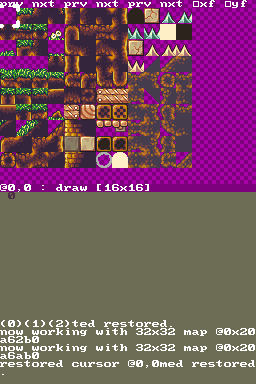
Screenshots