
HomeMenuEditor3DS: Difference between revisions
More actions
Created page with "{{Infobox 3DS Homebrews |title=HomeMenuEditor3DS |image=HomeMenuEditor3DS.png |description=Reads and edits the home menu data of the 3DS. |author=mrissaoussama |lastupdated=2025/01/27 |type=PC Utilities |version=2.0 |license=Mixed |download=https://dlhb.gamebrew.org/3dshomebrews/HomeMenuEditor3DS.7z |website=https://gbatemp.net/threads/homemenueditor3ds-edit-and-move-home-menu-titles-on-pc.665846/ |source=https://github.com/mrissaoussama/HomeMenuEditor3DS |donation= }} {..." |
No edit summary |
||
| (2 intermediate revisions by one other user not shown) | |||
| Line 4: | Line 4: | ||
|description=Reads and edits the home menu data of the 3DS. | |description=Reads and edits the home menu data of the 3DS. | ||
|author=mrissaoussama | |author=mrissaoussama | ||
|lastupdated=2025/01 | |lastupdated=2025/06/01 | ||
|type=PC Utilities | |type=PC Utilities | ||
|version=2. | |version=2.1 | ||
|license=Mixed | |license=Mixed | ||
|download=https://dlhb.gamebrew.org/3dshomebrews/HomeMenuEditor3DS.7z | |download=https://dlhb.gamebrew.org/3dshomebrews/HomeMenuEditor3DS.7z | ||
| Line 19: | Line 19: | ||
|image_alt=HomeMenuEditor3DS | |image_alt=HomeMenuEditor3DS | ||
}} | }} | ||
HomeMenuEditor3DS is PC tool helps you rearrange your 3DS Home Menu. You can: | HomeMenuEditor3DS is a PC tool that helps you rearrange your 3DS Home Menu. You can: | ||
* Move titles in the main menu | * Move titles in the main menu. | ||
* Move titles into or out of folders | * Move titles into or out of folders. | ||
* Create and rename folders | * Create and rename folders. | ||
* Sort titles by name, ID, genre, or publisher | * Sort titles by name, ID, genre, or publisher. | ||
== | ==User guide== | ||
=== | === Preparation === | ||
Use [[FBI 3DS|FBI]] to get launcher.dat and savedata.dat: | |||
* Go to ext save data, choose the Home Menu title ID, copy the Savedata to your SD card. | |||
* Do the same for launcher.dat, except going to Go to system save data instead. | |||
Use | Optional: Use [https://gbatemp.net/threads/smdh-dumper-hbl-mod.398834/ SMDH dumper] to extract smdh files from installed titles and put them in icondata. there are already some icons there. | ||
You can also use the python script to extract smdh files from decrypted cia files. it works in most cases. | |||
' | === How to Use === | ||
Put both dat files in the app directory and launch it. | |||
Make sure to back up your DAT files first. Although there is a low chance this can cause damage, it's better to do this. the worst that can happen is you reset your home menu layout and folders. | |||
You should see your home menu layout. Click on a title to select it, then click on another title or an empty slot to swap. | |||
Click on a folder to open its contents. you can swap titles here too. | |||
Save and check the changes. you only need to save when swapping. sorting, creating or renaming a folder saves automatically. | |||
Now move the files back to your 3DS and copy them from the SD card using [[FBI 3DS|FBI]]. just go back to the previous directories and paste. | |||
Restart your console and you should see the changes. | |||
==Screenshots== | ==Screenshots== | ||
| Line 75: | Line 57: | ||
https://dlhb.gamebrew.org/3dshomebrews/images/HomeMenuEditor3DS-03.png | https://dlhb.gamebrew.org/3dshomebrews/images/HomeMenuEditor3DS-03.png | ||
==Changelog== | ==Known issues== | ||
Some bugs may still exist, including minor visual glitches. | |||
==Changelog== | |||
'''v2.1''' | |||
* removed test code, which fixes the admin requirement. | |||
* improve synopsis parsing. | |||
* clicking on title id or title name will copy it to clipboard. | |||
* UI improvements | |||
'''v2.0''' | '''v2.0''' | ||
* Added reading title data from json/xml database | * Added reading title data from json/xml database. | ||
* Added Title/Folder sorting by Id,Name,Genre or publisher | * Added Title/Folder sorting by Id,Name,Genre or publisher. | ||
* Can create or rename folders | * Can create or rename folders. | ||
'''v1.0''' | '''v1.0''' | ||
* First Release. | * First Release. | ||
Latest revision as of 03:23, 8 June 2025
| HomeMenuEditor3DS | |
|---|---|
 | |
| General | |
| Author | mrissaoussama |
| Type | PC Utilities |
| Version | 2.1 |
| License | Mixed |
| Last Updated | 2025/06/01 |
| Links | |
| Download | |
| Website | |
| Source | |
HomeMenuEditor3DS is a PC tool that helps you rearrange your 3DS Home Menu. You can:
- Move titles in the main menu.
- Move titles into or out of folders.
- Create and rename folders.
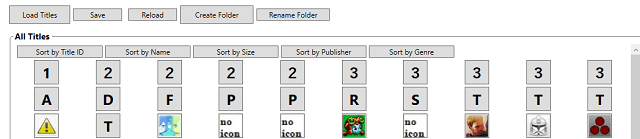
- Sort titles by name, ID, genre, or publisher.
User guide
Preparation
Use FBI to get launcher.dat and savedata.dat:
- Go to ext save data, choose the Home Menu title ID, copy the Savedata to your SD card.
- Do the same for launcher.dat, except going to Go to system save data instead.
Optional: Use SMDH dumper to extract smdh files from installed titles and put them in icondata. there are already some icons there.
You can also use the python script to extract smdh files from decrypted cia files. it works in most cases.
How to Use
Put both dat files in the app directory and launch it.
Make sure to back up your DAT files first. Although there is a low chance this can cause damage, it's better to do this. the worst that can happen is you reset your home menu layout and folders.
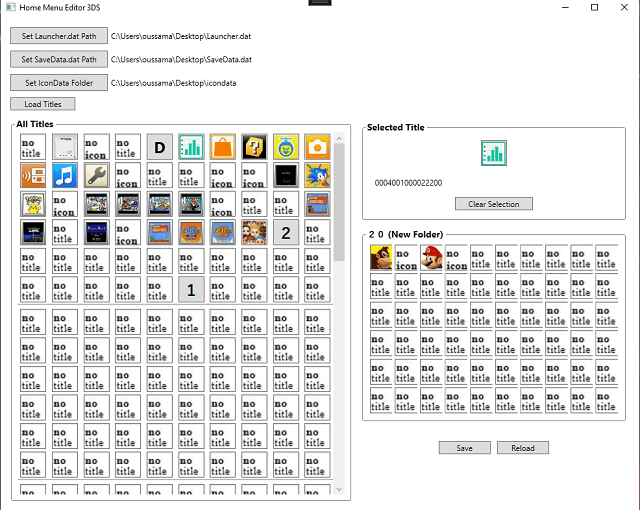
You should see your home menu layout. Click on a title to select it, then click on another title or an empty slot to swap.
Click on a folder to open its contents. you can swap titles here too.
Save and check the changes. you only need to save when swapping. sorting, creating or renaming a folder saves automatically.
Now move the files back to your 3DS and copy them from the SD card using FBI. just go back to the previous directories and paste.
Restart your console and you should see the changes.
Screenshots
Known issues
Some bugs may still exist, including minor visual glitches.
Changelog
v2.1
- removed test code, which fixes the admin requirement.
- improve synopsis parsing.
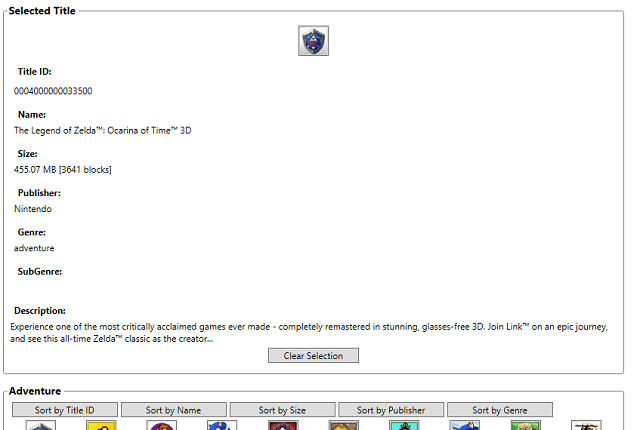
- clicking on title id or title name will copy it to clipboard.
- UI improvements
v2.0
- Added reading title data from json/xml database.
- Added Title/Folder sorting by Id,Name,Genre or publisher.
- Can create or rename folders.
v1.0
- First Release.