
Macros-NX Switch
From GameBrew
More actions
| Macros-NX | |
|---|---|
 | |
| General | |
| Author | TheStonedModder |
| Type | PC Utilities |
| Version | 1.0.0 |
| License | N/A |
| Last Updated | 2025/05/15 |
| Links | |
| Download | |
| Website | |
| Source | |
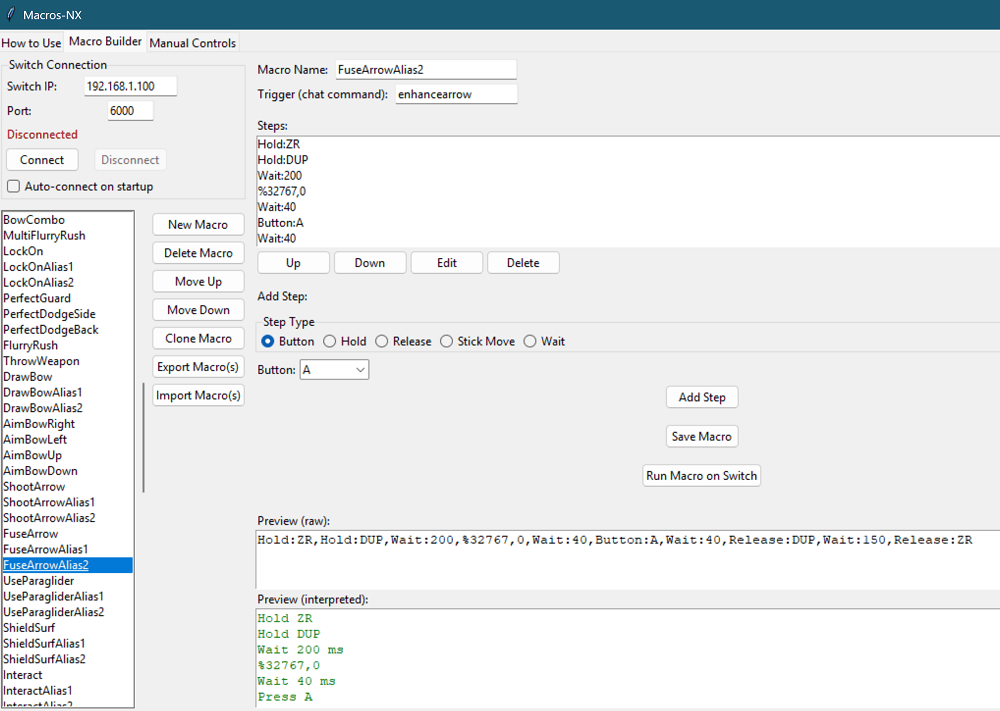
Macros-NX is a Python-based GUI application designed to create, edit, and execute controller macros on a Nintendo Switch via sys-botbase. It enables automation of button presses, stick movements, and complex input sequences.
Features
- Visual macro builder with drag-and-drop step editing
- Support for all Switch buttons and both sticks
- Macro import/export (JSON)
- Manual controls for real-time input
- Step types: Button, Hold, Release, Stick Move, Wait
- Stick grid for precise analog input
- Macro preview (raw and interpreted)
- Save/load macros and configuration
- Robust error handling and user feedback
- Auto-connect to Switch on startup
Setup & Installation
Prerequisites
- Python 3.7 or higher
- sys-botbase installed on the Nintendo Switch.
Installation Steps
- Install Python dependencies:
- If using rye:
rye sync - If ssing pip:
pip install -r requirements.txt
- If using rye:
- Install sys-botbase on the Nintendo Switch:
- Download from sys-botbase Switch
- Extract to the Switch's SD card and reboot the console.
- Run the Macros-NX application:
- Using Python:
python macroBuilder.py - On Windows: Double-click
open_macroBuilder.bat
- Using Python:
Usage
Connecting to the Nintendo Switch
- Launch Macros-NX.
- Enter the Switch's IP address and port (default is 6000).
- Click the "Connect" button.
Building and Running Macros
- Navigate to the "Macro Builder" tab.
- Add or edit steps using the drag-and-drop interface.
- Import or export macros in JSON format as needed.
Test macros
- Click "Run Macro on Switch" to execute the macro.
Manual Controls
- Use the "Manual Controls" tab to send real-time inputs to the Switch.
Refer to the in-app "How to Use" tab for detailed instructions and troubleshooting tips.
Screenshots
Changelog
v1.0
- First Release.