
Nsx Library Manager Switch
More actions
| Nsx Library Manager | |
|---|---|
 | |
| General | |
| Author | ivaano |
| Type | PC Utilities |
| Version | 0.3.1 |
| License | MIT License |
| Last Updated | 2024/02/01 |
| Links | |
| Download | |
| Website | |
| Source | |
The Nsx Library Manager is a homebrew tool designed for managing and visualizing a Nintendo Switch library. It organizes files and creates a comprehensive database. The tool was created out of a desire for a data grid that allows easy filtering and sorting of games, and it offers the added convenience of server-based access from any device.
Features
- Web interface.
- Runs on Windows, Linux and Mac.
- Supports NSP, NSZ, XCI, XCZ files.
- Read a folder and analyze all the files.
- Extract metadata from the files, like name, size, titleId, publisher and Icon.
- Use titledb to aggregate more information.
- Create a database with all the information.
- Shows a list or grid of all your games.
- Filter by name, publisher, size, titleId, region, type, etc.
- Sort by name, publisher, size, titleId, region, type, etc.
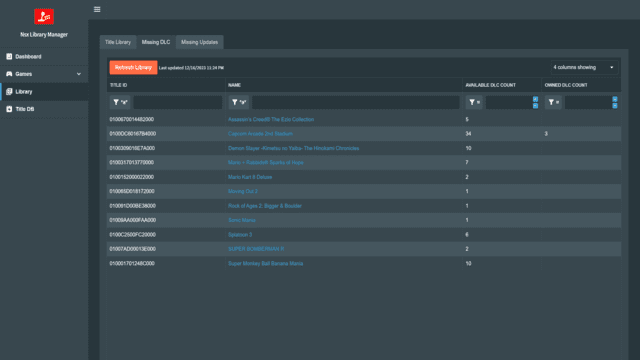
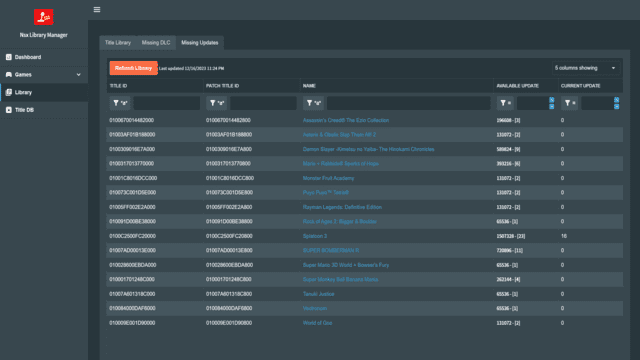
- List missing DLC or updates for your games.
- Local TitleDb, no need to download it every time.
Requirements
- dotnet 8.0
- a recent browser (didn't worked on Edge 13)
- prod.keys
Install
- Download the latest release
- Extract the zip/gz file
- Create
titledb\config.jsonand customize it to your needs:TitleDatabase: Path where the db file is going to be stored, this is required and must end with.db. Use a fast drive for this file, like a NVMe.LibraryPath: Path to your library.Recursive: If true, it will search recursively in the library path.TitleDbPath: Path where we are going to download titledb json Files to add them to the db.RegionUrl: Url to download the region file.CnmtsUrl: Url to download the cnmts file.VersionUrl: Url to download the version file.Regions: List of regions to download.ProdKeys: Path to your prod.keys file, if this value is not set, program will look in the same folder as the executable, or you can put them in$HOME/.switch/prod.keys.
- Alternative to creating the file manually, run the application once and it will create a default config file you can use the the browser to edit it.
Warning - Be sure that the paths you put on config.json are valid, the application doesn't create the paths if they don't exists.
Note - Please use absolute paths, relative paths might not work because the function to build paths is a little wonky for example ~/Library will not work as expected on linux, as the final result will be /ApplicationPath/~/Library instead of /home/user/Library.
Docker
- Download the latest release
- Extract the zip/gz file
- build the image
docker build -t nsxlibrarymanager . - you can mount the keys, titledb and library folders to the container, for example: -
docker run --name nsxlibrarymanager -p 8080:8080 --mount type=bind,source=/home/ivan/nsxlib/keys,target=/app/keys --mount type=bind,source=/home/ivan/nsxlib/library,target=/app/library nsxlibrarymanager
Usage
- Run the
NsxLibraryManager.exefile. - If you are running it for the first time, you will need to download the region, cnmts and version files.
- Open your browser and go to http://localhost:5000.
- On first run you will need to update titledb, go to Titledb and click on Update Titledb button.
- After that, go to Library and click on Reload Library
- If new files are added to your library, you can use the Refresh Library button to update the database.
- Reload Library will drop the table and create it again.
Tip - To setup the port or the listening address, you can use the --urls parameter, for example ./NsxLibraryManager.exe --urls http://*:6666 will listen on any interface on port 6666.
Screenshots
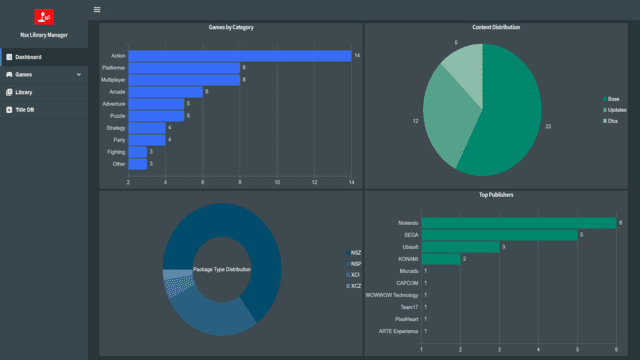

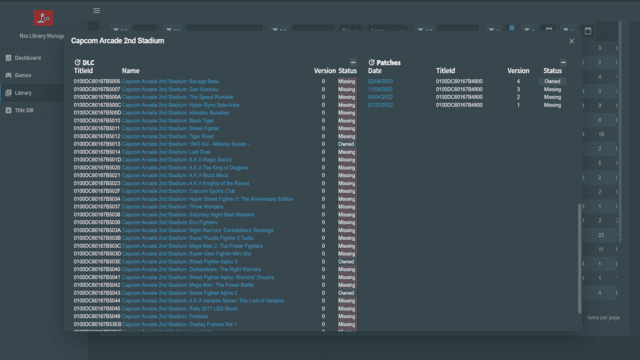
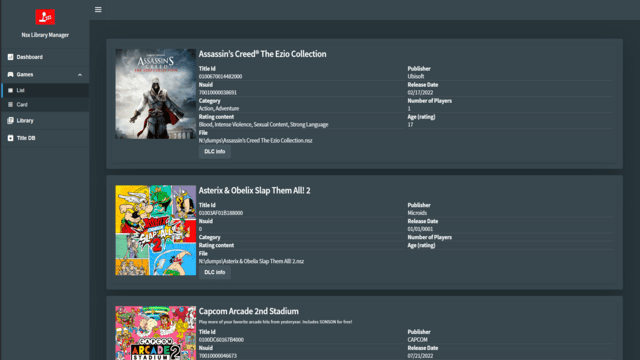
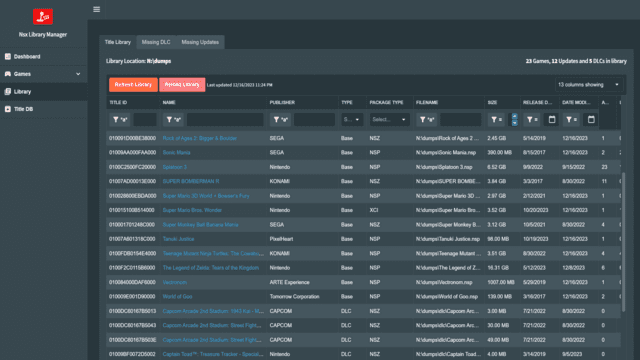
TODO
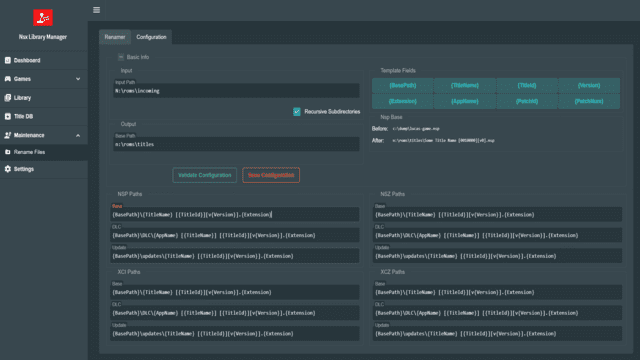
- Implement the file organizer.
- Support more Regions.
- Ability to add custom information to each title (favorite, rating).
- Ability to download and store banners and screenshots locally.
- Optimization.
Changelog
v0.3.1
- Config save fix by @ivaano
v0.3.0
- Libraries updates
- Dockerfile modification
- Titledb Insertbulk reduced to chunks of 1k to decrease memory while importing
- Titles that are not in cnmt are marked as unknown, marking them as base if titleid ends in 000
- TitleDb Categories filter
- Saving grid settings on library grid
- Rename now creates subdirectories if needed
- Config now read from config directory the default will be titledb so it can be mounted in docker.
v0.2.0
- License by @ivaano
- Renamer initial release by @ivaano
- Settings moved to config by @ivaano
v0.0.1
- First Release.
- Features/odata service
- Features/component refactor
- Libhac Update
- Deltas for faster library updates
- Dashboard
- Added game list page, and game card to easy browse games in library
- Library Title detail moda
- Move title detail in library to a modal
- Versions update
- Readme updates
Credits
- Libhac For the amazing library to read nintendo switch files.
- Titledb For the excellent database with all the information.
- LiteDb
- Radzen.Blazor