
NX Save Sync Switch
From GameBrew
More actions
| NX Save Sync | |
|---|---|
 | |
| General | |
| Author | Xc987 |
| Type | Utilities |
| Version | 2.1.0 |
| License | MIT License |
| Last Updated | 2025/04/25 |
| Links | |
| Download | |
| Website | |
| Source | |
NX-Save-Sync is a homebrew application designed for the Nintendo Switch, enabling users to synchronize save files between the console and PC-based emulators.
Usage
Sync from switch to pc
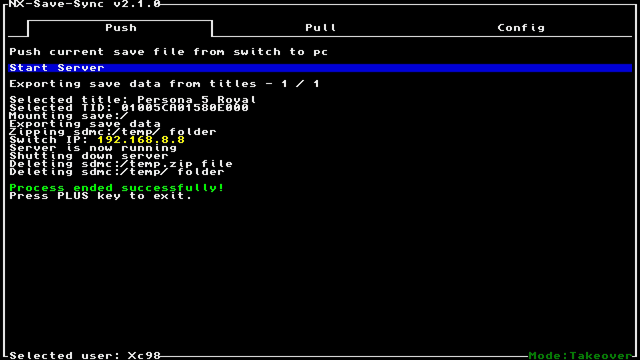
- Run switch app, press ZL / ZR or L / R to change the current user and select "Start server" in Push tab, move between tabs with any left / any right
- Select only one title with A, multiple titles with Y (select / deselect) and A to start pushing (not including the title thats hovered) or X to select all titles, move between pages with any left / any right
- If no errors occured, you should see switch IP in yellow
- Open pc app, go to config tab and set the switch IP - Only for the first time when syncing from switch to pc
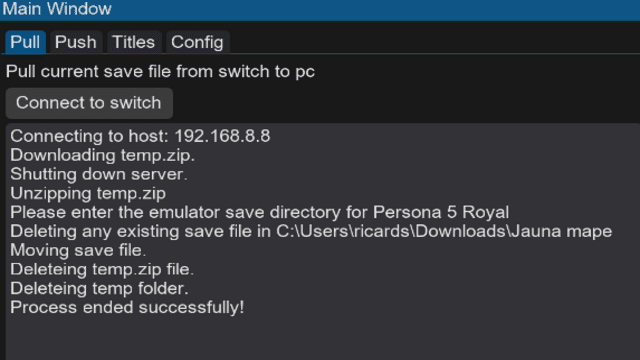
- In pc app, go to Pull tab and select "Connect to switch"
- Paste the emulator save file directory and press enter (the directory contents will be deleted!) - Only for the first time syncing the selected title
- If no errors occured, the save file should be copied from switch to pc
Sync from pc to switch
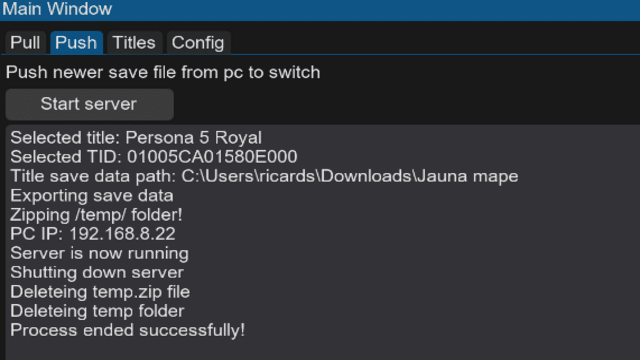
- Open pc app, go to Push tab and select "Start server"
- Select the title(s) or all titles you want to push
- If no errors occured, you should see pc IP
- Run switch app, go to Config tab and select "Set PC IP" and enter the pc IP. - Only for the first time when syncing from pc to switch
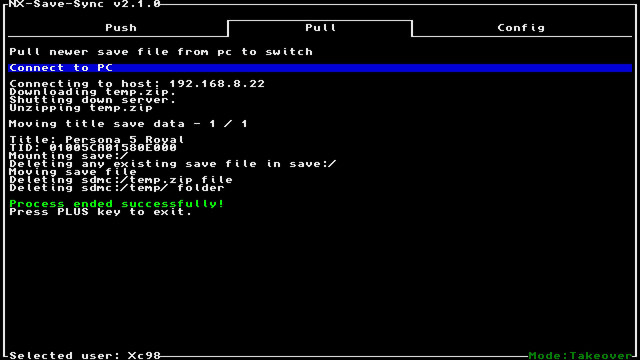
- In switch app, go to Pull tab and select "Connect to PC"
- If no errors occured, the save file should be copied from pc to switch
Note: During sync between switch and pc, both devices must be on the same network. Currently exiting from the switch app while pushing a save file or waiting for pc to host server is not possible, might be added in later release.
Screenshots
Changelog
v2.1.0
- Add selecting multiple or all titles in switch and desktop app #1
- Add listing saved titles and add a new title in desktop app
- Fix pushing from switch to pc titles with special or non ascii chars in the name #2
- List only titles that have a save file for the selected user in switch app
v2.0.0
- Add gui for pc app and make switch app gui a bit better
- Fix save file commiting on switch app
- Add changeable pc app themes
- Remove option exit switch app while waiting for pc to start server or for pc to connect to switch
v1.2.0
- add pushing new save file from pc to switch
- options can be selected by keyboard arrows, make the terminal output more fancy in pc app
- switch / pc ip can be set and changed both in pc and switch app
- the user can now be changed by pressing ZL / ZR, no need for user selection pop up in switch app
- while waiting for pc to start server or for pc to download zip file, process can be canceled
v1.1.0
- Add switch app icon
- Make switch app console output more fancy
- Move config file to APPDATA
- Turn python file into windows executable
v1.0.0
- Initial release.
External links
- Github - https://github.com/Xc987/NX-Save-Sync
- HB-app - https://hb-app.store/switch/NXSaveSync