
Switch Assistant
More actions
| Switch Assistant | |
|---|---|
 | |
| General | |
| Author | ErSeraph |
| Type | System Tools |
| Version | 1.5 |
| License | MIT License |
| Last Updated | 2026/05/06 |
| Links | |
| Download | |
| Website | |
| Source | |
Switch Assistant connects the Nintendo Switch to Home Assistant through MQTT.
Once configured, it publishes console sensors to Home Assistant and shows Home Assistant popup notifications directly over the game, without opening Tesla Menu.
The project installs three components:
| Component | Purpose |
|---|---|
switch-ha.nro
|
Homebrew app used for configuration, connection tests, and automatic installation. |
| Atmosphere sysmodule | Background process that publishes sensors and receives MQTT commands. |
| Notification overlay | Shows Home Assistant popups over the currently running game. |
The .nro app is only used for setup and configuration. After rebooting, the sysmodule handles the background MQTT work.
Features
- Shows battery, charging state, temperature, brightness, volume, and connected controllers in Home Assistant.
- Reports whether a game is running and publishes the current game Title ID.
- Exposes reboot and shutdown buttons in Home Assistant.
- Sends Home Assistant popup notifications to the Switch.
- Provides a simple Homebrew configuration app on the console.
- Uses MQTT Discovery so entities appear automatically in Home Assistant.
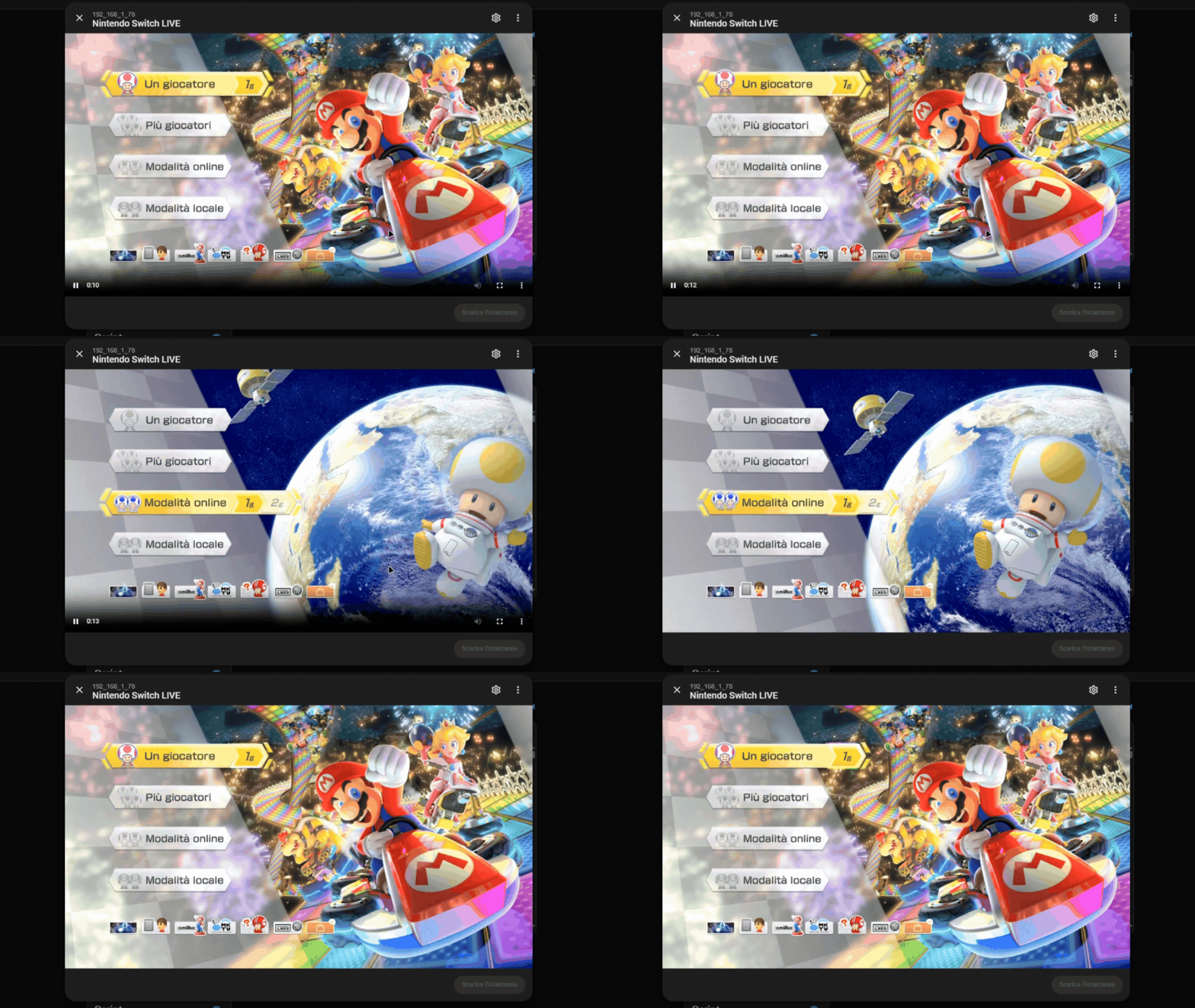
- Live screen streaming to Home Assistant via RTSP.
Installation
Requirements
- Nintendo Switch running Atmosphere.
- Working Homebrew Menu.
- Home Assistant already installed.
- An MQTT broker reachable from the Switch, such as Mosquitto.
- A network where the Switch and MQTT broker can communicate with each other.
The sysmodule supports plain TCP MQTT, usually on port 1883. It does not support TLS on 8883, MQTT over WebSocket, or mDNS hostnames such as homeassistant.local for the MQTT broker.
Quick installation
- Download
switch-ha.nrofrom the latest release. - Copy the file to the SD card:
sdmc:/switch/switch-ha/switch-ha.nro
- Launch
Switch Assistantfrom the Homebrew Menu. - On first launch, the app creates the required folders and installs:
sdmc:/atmosphere/contents/00FF000053484101
sdmc:/atmosphere/contents/00FF000053484102
sdmc:/switch/switch-ha/switch-ha-overlay.ovl
sdmc:/switch/switch-ha/config.ini
- Enter the Home Assistant and MQTT settings.
- Press
Yto test the connection. - Press
-to reboot the console.
After the reboot, Home Assistant should automatically discover the new MQTT entities.
On the main screen, fill in the following fields:
| Field | Example | Notes |
|---|---|---|
HA URL
|
http://192.168.1.10:8123
|
Home Assistant URL. |
HA Token
|
Long-lived token | Home Assistant long-lived access token. |
MQTT Host IP
|
192.168.1.10
|
Use the broker IP address, not homeassistant.local.
|
MQTT Port
|
1883
|
Do not use 8123; that is the Home Assistant web port.
|
MQTT Username
|
mqtt_user
|
MQTT broker username. |
MQTT Password
|
password
|
MQTT broker password. |
Discovery
|
homeassistant
|
Standard MQTT Discovery prefix. |
Name
|
Nintendo Switch
|
Device name shown in Home Assistant. |
Client ID
|
switch-ha-xxxxxxxx
|
Generated automatically, editable if needed. |
Boot Delay
|
0
|
Seconds to wait before the sysmodule starts system services. Use only if the setup crashes during boot. |
Notifications
|
YES
|
Enabled by default. Disable and reboot if the notification overlay crashes the console. |
If entering the Home Assistant token on the console is inconvenient, open the app once, then edit:
sdmc:/switch/switch-ha/config.ini
After changing any configuration value, reboot the console so the sysmodule reloads the file.
With MQTT Discovery enabled, Switch Assistant publishes discovery payloads under the configured prefix, usually:
homeassistant
Console states are published under:
switch_ha//...
Main entities:
| Type | Entities |
|---|---|
| Battery sensors | Level, charging state, charger type, voltage, temperature, battery health. |
| Console sensors | Brightness, screen, volume, audio output target. |
| Game | Game running, current Title ID. |
| Controllers | Player count, Player 1-8 controller type. |
| Commands | Reboot, shutdown. |
| Notifications | Home Assistant popup on the Switch. |
The console supports live streaming while in-game. To enable it, create a Generic Camera using the stream URL found in the entity Screen Stream URL. SSL verification should be disabled in the camera configuration for it to work correctly.
Home Assistant creates a notify entity with a name similar to:
notify.nintendo_switch_popup_notification
Example Home Assistant action:
action: notify.send_message
target:
  entity_id: notify.nintendo_switch_popup_notification
data:
  message: "Laundry finished"
The MQTT notify integration currently forwards the message body to Switch Assistant. Home Assistant's title field is not included in that MQTT payload, so the popup title defaults to Home Assistant when using notify.send_message.
To send a custom title, publish directly to the popup topic with JSON:
action: mqtt.publish
data:
  topic: switch_ha//notify/popup
  payload: '{"title":"Laundry","message":"The washing machine has finished"}'
Alternatively, use a two-line payload where the first line is the title and the second line is the message.
The sysmodule writes the latest notification here:
sdmc:/switch/switch-ha/notification-current.ini
It keeps a small log here:
sdmc:/switch/switch-ha/notifications.log
The overlay reads these files and shows the popup automatically.
Controls
On the main screen:
| Button | Action |
|---|---|
D-Pad
|
Select a field. |
A
|
Edit the selected field. |
Y
|
Test Home Assistant and MQTT. |
-
|
Reboot the console to apply changes. |
+
|
Exit the app. |
Useful Paths
| Path | Contents |
|---|---|
sdmc:/switch/switch-ha/switch-ha.nro
|
Homebrew app. |
sdmc:/switch/switch-ha/config.ini
|
Configuration. |
sdmc:/switch/switch-ha/switch-ha-overlay.ovl
|
Notification overlay. |
sdmc:/switch/switch-ha/sysmodule.log
|
Sysmodule log. |
sdmc:/switch/switch-ha/sysmodule-heartbeat.txt
|
Sysmodule diagnostic state. |
sdmc:/switch/switch-ha/notifications.log
|
Short notification history. |
sdmc:/atmosphere/contents/00FF000053484101
|
Switch Assistant sysmodule. |
sdmc:/atmosphere/contents/00FF000053484102
|
Switch Assistant overlay loader. |
Troubleshooting
Home Assistant does not show any entities
- Make sure the MQTT integration is enabled in Home Assistant.
- Check that
Discoveryis set tohomeassistant. - Press
Yin the app and confirm that the MQTT test succeeds. - Reboot the console after saving the configuration.
Wrong MQTT port
If a message like the following appears:
Port 8123 is HA HTTP; MQTT is usually 1883
The Home Assistant web port is being used. MQTT usually runs on 1883.
TCP failed or broker/port closed
The Switch reached the broker IP, but the MQTT port is closed or not exposed. Check that:
- Mosquitto or the MQTT broker is running.
- Port
1883is exposed on the LAN. - Firewall, VLAN, or client isolation rules are not blocking the Switch.
- The configured IP address is the MQTT broker address.
The test works, but sensors do not appear
The test runs from the .nro app. Sensors are published by the sysmodule only after rebooting. Press - in the app or reboot the console manually.
Console crashes during boot
Some custom Atmosphere packs may crash if boot2 sysmodules start system services too early or if the notification overlay is not compatible with the custom CFW.
If the console fails to boot after installing Switch Assistant:
- Power off the console.
- Put the SD card in a PC.
- Remove these folders if they exist:
sdmc:/atmosphere/contents/00FF000053484101
sdmc:/atmosphere/contents/00FF000053484102
- Put the SD card back in the console and boot normally.
- Launch
Switch Assistantfrom the Homebrew Menu. - Set
NotificationstoNO. - Press
-in the app.
If it works, the issue was caused by the notification overlay. Notifications will no longer be usable.
If there are still issues, delay the startup of Switch Assistant so the console has enough time to finish its boot routine. Repeat the recovery steps above from 1 to 5, then:
- Set
Boot Delayto30seconds. - Press
-in the app.
If the console still crashes, repeat the recovery steps and try a higher value such as 60 seconds.
Boot Delay is saved in:
startup_delay_seconds=30
The default is 0, which keeps startup immediate on standard Atmosphere setups.
Screenshots
|
|
Changelog
v1.5
- Added a configurable Notifications option to disable notifications if a custom Atmosphere setup is not compatible.
v1.4
- Added live screen streaming to Home Assistant via RTSP.
- Published a new MQTT entity with the console's RTSP stream URL for easy camera setup.
v1.3
- Fixed saved video recordings showing a green screen by excluding the notification overlay from the recording layer stack.
- Resolved the current game name from a bundled title database.
- Installed the bundled title database alongside the Switch Assistant config files.
v1.2
- Fixed Switch Assistant title IDs to avoid collisions with existing homebrew sysmodules.
- Safely cleaned up old Switch Assistant installs only when identified by project markers.
- Improved notification text handling for Unicode payloads.
- Prevented old notifications from being shown again on boot.
- Added a configurable Boot Delay option for custom Atmosphere packs that crash when boot2 sysmodules start system services too early.
v1.1
- Published active game Title ID and app running state sensors.
- Added Home Assistant popup notifications.
v1.0
- Initial release.
Credits
The overlay loader is derived from the ISC-licensed nx-ovlloader project and chainloads the Switch Assistant overlay directly instead of Tesla Menu.