
PixelPix 3D
More actions
| PixelPix 3D | |
|---|---|
 | |
| General | |
| Author | z-alzayer |
| Type | Other Apps |
| Version | 1.8 |
| License | Mixed |
| Last Updated | 2026/04/10 |
| Links | |
| Download | |
| Website | |
| Source | |
A Game Boy-style camera app for the Nintendo 3DS. Point it at something, pick a palette, and save retro-filtered photos to your SD card.
Installation
What you need:
- A Nintendo 3DS (any model) with homebrew access
- An SD card
Option A - Homebrew Launcher (easiest):
- Download 3ds_camera.3dsx from the releases page.
- Copy it to the /3ds/ folder on your SD card.
- Launch it from the Homebrew Launcher.
Option B - Install as a full app (CIA):
- Download 3ds_camera.cia from the releases page.
- Copy it anywhere on your SD card.
- Open FBI, navigate to the file, and install it.
- The app will appear on your home menu like any normal game.
User guide
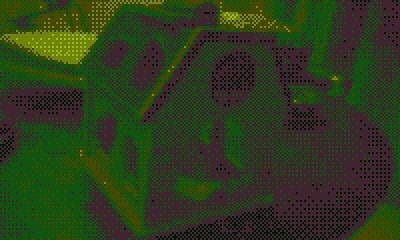
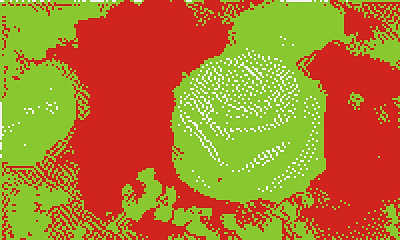
The live filtered view is always on the top screen. When you see something you like, just save it.
- A (or tap the "Save" button) saves the current frame to your SD card.
- Y (or tap the "Outer/Selfie" button) switches between the rear and front camera.
Photos are saved to sdmc:/DCIM/GameboyCamera/ as GB_0001.JPG, GB_0002.JPG, etc.
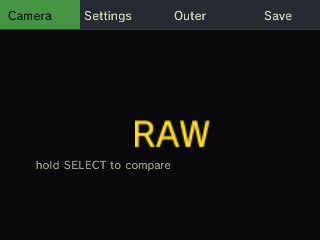
Hold SELECT at any time to temporarily see the raw, unfiltered camera feed.
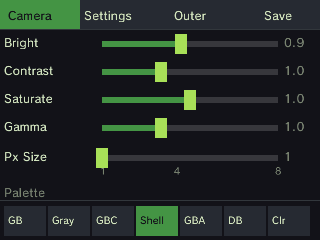
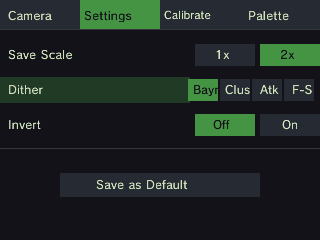
The bottom screen has two tabs: "Camera" and "Settings". Tap either label to switch.
Camera tab
Four sliders let you adjust the look in real time:
- Brightness - Lighter or darker overall
- Contrast - Pushes darks and lights further apart
- Saturation - Left = greyscale, Right = vivid colour
- Gamma - Lifts or deepens the midtones
- Pixel Size - Adds a pixelation effect (snaps to 8 steps)
Below the sliders are 6 palette buttons, tap one to apply that colour palette. L/R cycle through them with buttons.
Palettes (Default):
- GB Greens (Classic 4-colour Game Boy green)
- GB Grays (Monochrome greyscale)
- GBC Greenish (Game Boy Color green tones)
- GBC Shell (Colourful, inspired by GBC shell colours)
- GBA-like UI (Game Boy Advance UI colours)
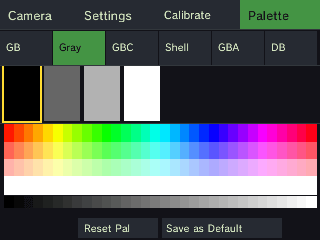
- DB Retro (Darkbox retro palette)
Settings tab
Settings tab options:
- Save Scale - 1× saves at 400×240, 2× saves at 800×480 (default).
- Dither Mode - How colours blend at palette edges: Bayer, Cluster, Atkinson, or Floyd-Steinberg
- Invert - Flips all colours to their negative
From within the Settings tab, two extra tabs appear in the tab bar:
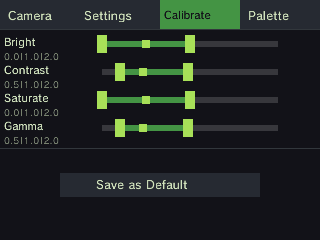
- Calibrate - Adjust the min, max, and default value for each filter slider
- Palette - Edit each palette's colours with RGB sliders; the top screen shows a live preview.
When you've set things up the way you like, tap "Save as Default" to write your settings to the SD card. They'll be there the next time you open the app.
Gallery tab
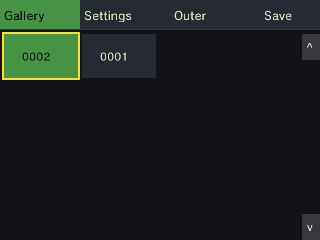
Tap Gallery in the tab bar (tap on the first tab to switch between Camera and Gallery) to browse photos you've already saved.
Use the D-Pad to move between photos. The selected photo shows full-screen on the top screen.
Resetting to defaults
All your settings are stored in one plain-text file on the SD card:
sdmc:/3ds/pixelpix3d/settings.ini
To reset everything back to factory defaults, delete that file. The app will recreate it with defaults the next time you tap "Save as Default".
You can also open settings.ini on a computer and edit values manually, it's just key=value pairs.
Controls
A - Save photo
Y - Toggle rear/front camera
L/R - Previous/Next palette
B - Cycle pixel size
D-Pad Up/Down - Brightness (in Camera tab)
D-Pad Left/Right - Saturation (in Camera tab)
Select (hold) - Compare/Show raw unfiltered feed
Start - Quit
Screenshots
|
|
|
|
|
|
|
|
Known issues
3D depth slider - raising it shows a red warning screen.