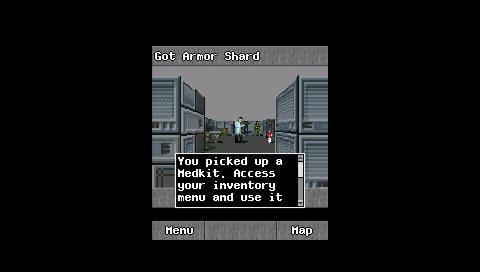
PSPKVM: Difference between revisions
From GameBrew
More actions
Created page with "{{Infobox PSP homebrew | title = PSPKVM | image = https://dlhb.gamebrew.org/psphomebrew/pspkvm.png|250px | type = Other Emulators | version = 0.5.5 (10 Jan 2011) | licence = G..." |
|||
| Line 58: | Line 58: | ||
'''Virtual keyboard:''' | '''Virtual keyboard:''' | ||
Most MIDlets will invoke your selected virtual keyboard for involved text entry tasks, as these provide for much easier text input. You can enable them in the VM Config midlet in the System Midlets folder. | |||
* AWF virtual keyboard (Default). | * AWF virtual keyboard (Default). | ||
| Line 66: | Line 67: | ||
'''Multitasking:''' | '''Multitasking:''' | ||
In any application, you can use the combination keys to send the currently running MIDlet to the background, and the AMS screen will be shown. The backgrounded MIDlet is shown highlighted, and you can choose another MIDlet to run without stopping the previous MIDlet. To bring a midlet running in the background to the foreground, just click the MIDlet item from AMS. | In any application, you can use the combination keys to send the currently running MIDlet to the background, and the AMS screen will be shown. | ||
The backgrounded MIDlet is shown highlighted, and you can choose another MIDlet to run without stopping the previous MIDlet. | |||
To bring a midlet running in the background to the foreground, just click the MIDlet item from AMS. | |||
'''Connecting to the network:''' | '''Connecting to the network:''' | ||
| Line 76: | Line 81: | ||
Once the message "Successfully connected by profile xxx" appears, your network is ready, and you can go back to the AMS and run MIDlets that use the network. | Once the message "Successfully connected by profile xxx" appears, your network is ready, and you can go back to the AMS and run MIDlets that use the network. | ||
For 3.xx OE users, you don't have to set up network in the Network Setup menu. When the first MIDlet want to access the network, a PSP network setup dialog will popup and prompt you to start a connection. And also, you can call up the network setup dialog at any time with the combination keys. | For 3.xx OE users, you don't have to set up network in the Network Setup menu. When the first MIDlet want to access the network, a PSP network setup dialog will popup and prompt you to start a connection. | ||
And also, you can call up the network setup dialog at any time with the combination keys. | |||
'''Selecting a device to emulate:''' | '''Selecting a device to emulate:''' | ||
When the user installs a Midlet, a Device Select menu will appear. Choose your preferred device size and model here, and press the Circle key to select it. If you want to change the preferred device setting, go back to the AMS and move the highlight onto the MIDlet whose setting you want to change, then select Select Device from the menu. | When the user installs a Midlet, a Device Select menu will appear. Choose your preferred device size and model here, and press the Circle key to select it. | ||
If you want to change the preferred device setting, go back to the AMS and move the highlight onto the MIDlet whose setting you want to change, then select Select Device from the menu. | |||
'''Compatibility List:''' | '''Compatibility List:''' | ||