Switch Deck: Difference between revisions
From GameBrew
More actions
Created page with "{{Infobox Switch Homebrews |title=Switch Deck |image=SwitchDeck.png |description=A Streamdeck for Nintendo Switch. |author=lunares83 |lastupdated=2026/03/12 |type=Other Apps |version=0.10.7.3.7 |license=MIT |download=https://github.com/lunares83/Switch_Deck/releases |website=https://github.com/lunares83/Switch_Deck |source=https://github.com/lunares83/Switch_Deck |donation= }}<!--SwitchDeck.7z--> Switch Deck turns your Nintendo Switch into a wireless "Stream Deck" for yo..." |
No edit summary |
||
| Line 23: | Line 23: | ||
On your Computer: | On your Computer: | ||
* Install requirements: pip install PySide6 pyautogui | * Install requirements: <code>pip install PySide6 pyautogui</code> | ||
* Run configurator.py to set up your PC IP, button actions, and icons. | * Run configurator.py to set up your PC IP, button actions, and icons. | ||
* Click "SAVE TO SWITCH" and select your app's folder on the SD Card. | * Click "SAVE TO SWITCH" and select your app's folder on the SD Card. | ||
Revision as of 09:58, 16 March 2026
| Switch Deck | |
|---|---|
 | |
| General | |
| Author | lunares83 |
| Type | Other Apps |
| Version | 0.10.7.3.7 |
| License | MIT License |
| Last Updated | 2026/03/12 |
| Links | |
| Download | |
| Website | |
| Source | |
Switch Deck turns your Nintendo Switch into a wireless "Stream Deck" for your computer. Using the console's touchscreen, you can launch apps, execute hotkeys, or open URLs on your PC over your local Wi-Fi network.
The project consists of three main components:
- NRO (Switch): The visual frontend that sends commands via TCP.
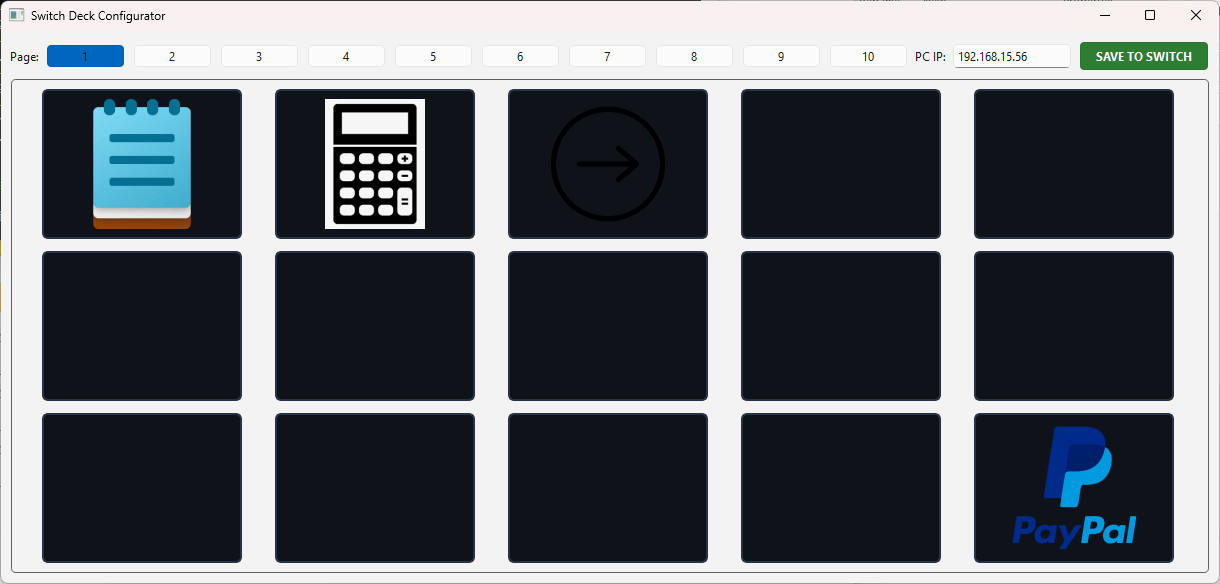
- Configurator (PC): A Python GUI tool to map buttons, icons, and pages.
- Receiver (PC): A lightweight background server that listens for Switch commands and executes actions on Windows.
User guide
On your Computer:
- Install requirements:
pip install PySide6 pyautogui - Run configurator.py to set up your PC IP, button actions, and icons.
- Click "SAVE TO SWITCH" and select your app's folder on the SD Card.
- Launch receiver.py to start listening for commands.
On your Switch:
- Ensure both Switch and PC are on the same Wi-Fi network.
- Open the app via the Homebrew Menu.
- If the background is green, you are connected! If it's red, double-check the IP in config.json.
Screenshots
Configurator
|