Macros-NX Switch: Difference between revisions
From GameBrew
More actions
No edit summary |
|||
| Line 65: | Line 65: | ||
* Click "Run Macro on Switch" to execute the macro. | * Click "Run Macro on Switch" to execute the macro. | ||
Manual | Manual controls: | ||
* Use the "Manual Controls" tab to send real-time inputs to the Switch. | * Use the "Manual Controls" tab to send real-time inputs to the Switch. | ||
Latest revision as of 02:05, 27 May 2025
| Macros-NX | |
|---|---|
 | |
| General | |
| Author | TheStonedModder |
| Type | PC Utilities |
| Version | 1.0.0 |
| License | N/A |
| Last Updated | 2025/05/15 |
| Links | |
| Download | |
| Website | |
| Source | |
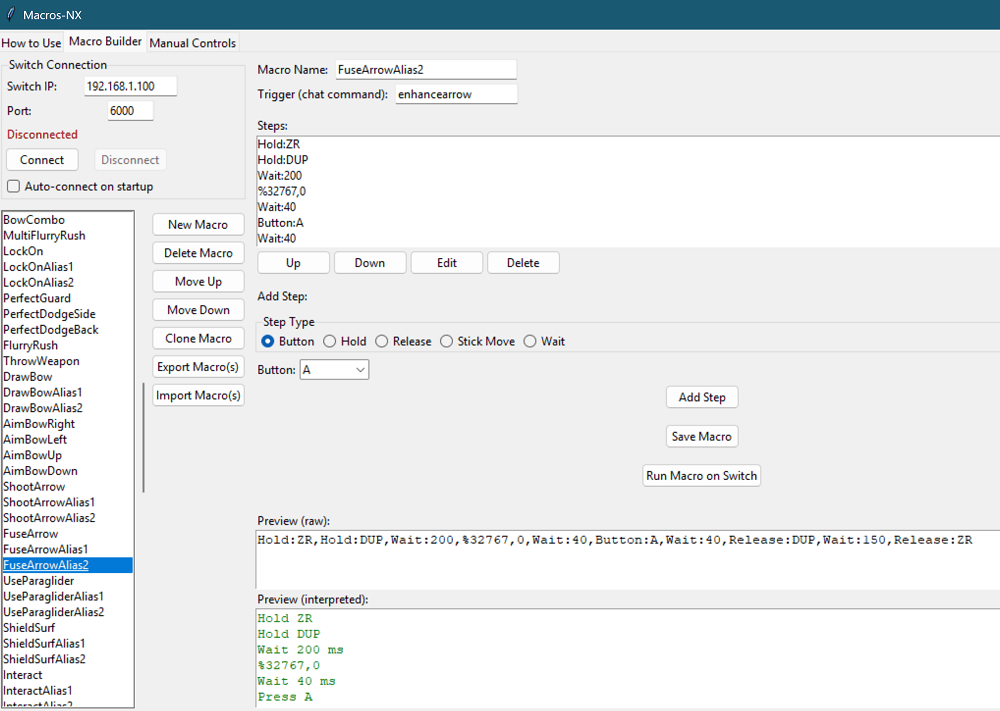
Macros-NX is a Python-based GUI application that can create, edit, and execute controller macros on a Nintendo Switch via sys-botbase.
It allows automation of button presses, stick movements, and complex input sequences.
Features
- Visual macro builder with drag-and-drop step editing.
- Support for all Switch buttons and both sticks.
- Macro import/export (JSON).
- Manual controls for real-time input.
- Step types: Button, Hold, Release, Stick Move, Wait.
- Stick grid for precise analog input.
- Macro preview (raw and interpreted).
- Save/load macros and configuration.
- Robust error handling and user feedback.
- Auto-connect to Switch on startup.
Installation
Prerequisites:
- Python 3.7 or higher
- sys-botbase installed on the Nintendo Switch.
Install Python dependencies:
- If using rye:
rye sync - If ssing pip:
pip install -r requirements.txt
Install sys-botbase on the Nintendo Switch:
- Download from here.
- Extract to the Switch's SD card and reboot the console.
Run the Macros-NX application:
- Using Python:
python macroBuilder.py - On Windows: Double-click
open_macroBuilder.bat
User guide
Connect your Switch:
- Launch Macros-NX, enter the Switch's IP address and port (default is 6000).
- Click the "Connect" button.
Building and Running Macros:
- Navigate to the "Macro Builder" tab.
- Add or edit steps using the drag-and-drop interface.
- Import or export macros in JSON format as needed.
Test macros:
- Click "Run Macro on Switch" to execute the macro.
Manual controls:
- Use the "Manual Controls" tab to send real-time inputs to the Switch.
See the in-app "How to Use" tab for detailed instructions and troubleshooting tips.
Screenshots
Changelog
v1.0
- First Release.