PSPMO5: Difference between revisions
From GameBrew
More actions
No edit summary |
|||
| Line 19: | Line 19: | ||
==User guide== | ==User guide== | ||
===Key mappings=== | |||
* Multiple mappings in the emulator window (Standard, L-Trigger and R-Trigger). | * Multiple mappings in the emulator window (Standard, L-Trigger and R-Trigger). | ||
* Danzeff On-Screen Keyboard (by Danzel and Jeff Chen). | * Danzeff On-Screen Keyboard (by Danzel and Jeff Chen). | ||
* Customizable IR Keyboard (from the file pspirkeyb.ini). | * Customizable IR Keyboard (from the file pspirkeyb.ini). | ||
===Load Rom files (ZIP, ROM)=== | |||
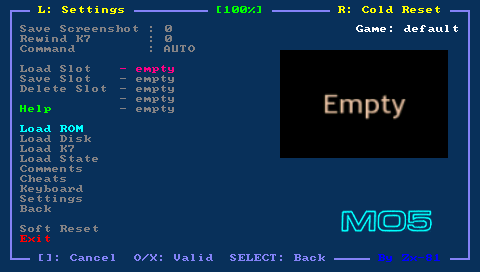
Put your rom file (with .zip or .rom file extension) on your PSP Memory Stick in the roms directory. Then use the file selector to choose the rom file from the Load ROM option, in the emulator main menu. | Put your rom file (with .zip or .rom file extension) on your PSP Memory Stick in the roms directory. Then use the file selector to choose the rom file from the Load ROM option, in the emulator main menu. | ||
| Line 32: | Line 31: | ||
To eject the ROM you will need to select Hard Reset option in the main menu. | To eject the ROM you will need to select Hard Reset option in the main menu. | ||
===Load Tape files (K7)=== | |||
Put your tape file (with .k7 file extension) on your PSP Memory Stick in the k7 directory. Then select your tape file using the Load K7 option in the emulator. | Put your tape file (with .k7 file extension) on your PSP Memory Stick in the k7 directory. Then select your tape file using the Load K7 option in the emulator. | ||
| Line 54: | Line 52: | ||
RUN"CASS:" | RUN"CASS:" | ||
===Load Disk files (FD)=== | |||
To load floppy image, put the disk file (with .fd file extension) on your PSP Memory Stick in the disc directory. | To load floppy image, put the disk file (with .fd file extension) on your PSP Memory Stick in the disc directory. | ||
| Line 71: | Line 68: | ||
diskname=RUN"RunName" | diskname=RUN"RunName" | ||
===Load Snapshot files (STZ)=== | |||
Save state feature is added in PSPTHOM. The save state format is specific to PSPMO5, but it might be useful to run previously loaded games (using K7 and disk menu). | Save state feature is added in PSPTHOM. The save state format is specific to PSPMO5, but it might be useful to run previously loaded games (using K7 and disk menu). | ||
===Cheat Code (CHT)=== | |||
Using the Cheat menu you can search for modified bytes in RAM between current time and the last time you saved the RAM (monitor/modify for example life numbers). | Using the Cheat menu you can search for modified bytes in RAM between current time and the last time you saved the RAM (monitor/modify for example life numbers). | ||
All cheat codes you have specified for a game can be save in a CHT file in the cht folder. Those cheat codes would then be automatically loaded when you start the game. CHT file format can be found in cheat.txt. | All cheat codes you have specified for a game can be save in a CHT file in the cht folder. Those cheat codes would then be automatically loaded when you start the game. CHT file format can be found in cheat.txt. | ||
===Load Key Mapping files (KBD)=== | |||
For given games, the default keyboard mapping between PSP Keys and MO5 keys, is not suitable, you can write your own mapping file to overcome the issue. | For given games, the default keyboard mapping between PSP Keys and MO5 keys, is not suitable, you can write your own mapping file to overcome the issue. | ||
| Line 91: | Line 85: | ||
Use the Keyboard menu to configurate, load and save your keyboard mapping files inside the emulator. The Save option save the KBD file in the kbd directory using the Game Name as filename. The game name is displayed on the right corner in the emulator menu. | Use the Keyboard menu to configurate, load and save your keyboard mapping files inside the emulator. The Save option save the KBD file in the kbd directory using the Game Name as filename. The game name is displayed on the right corner in the emulator menu. | ||
===Settings=== | |||
* Sound enable. | * Sound enable. | ||
* Display fps. | * Display fps. | ||