PSPColem: Difference between revisions
From GameBrew
More actions
| Line 23: | Line 23: | ||
==User guide== | ==User guide== | ||
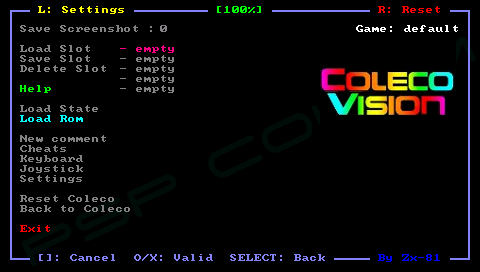
===Load ColecVision Rom files (ZIP, ROM)=== | |||
Put your rom file (with .zip, or .rom file extension) on your PSP Memory Stick in the rom directory. Go to the main menu, select your rom then go back to the emulator window to run the rom. | Put your rom file (with .zip, or .rom file extension) on your PSP Memory Stick in the rom directory. Go to the main menu, select your rom then go back to the emulator window to run the rom. | ||
| Line 29: | Line 29: | ||
If you have multple roms the the same folder, you can swap between the two virtual keyboard panels (numbers & letters) and search fo the game in the file requester menu. | If you have multple roms the the same folder, you can swap between the two virtual keyboard panels (numbers & letters) and search fo the game in the file requester menu. | ||
'''Load Key Mapping files (KBD) | '''Comments:''' | ||
You can write your own comments for games using the Comment menu. The first line of your comments would then be displayed in the file requester menu while selecting the given file name (roms, keyboard, settings). | |||
===Load Key Mapping files (KBD)=== | |||
The default keyboard mapping between PSP Keys and ColecoVision keys, is not suitable for all games, and you can write your own mapping file to overcome the issue (please see the sample mapping file default.kbd in the kdb directory). | The default keyboard mapping between PSP Keys and ColecoVision keys, is not suitable for all games, and you can write your own mapping file to overcome the issue (please see the sample mapping file default.kbd in the kdb directory). | ||
| Line 37: | Line 41: | ||
You can use the Keyboard menu and edit, load and save your keyboard mapping files inside the emulator for further configuration. In that case the KBD file will be saved in the kbd directory using the Game Name as filename. The game name is displayed on the right corner in the emulator menu. | You can use the Keyboard menu and edit, load and save your keyboard mapping files inside the emulator for further configuration. In that case the KBD file will be saved in the kbd directory using the Game Name as filename. The game name is displayed on the right corner in the emulator menu. | ||
===Cheat Code (CHT)=== | |||
Edit cheat.txt inside the cht directory and you can import the cheat codes in the Cheat menu. You can use the Cheat menu to search for modified bytes in RAM between current time and the last time you saved the RAM (monitoring for example life numbers). | Edit cheat.txt inside the cht directory and you can import the cheat codes in the Cheat menu. You can use the Cheat menu to search for modified bytes in RAM between current time and the last time you saved the RAM (monitoring for example life numbers). | ||
===Key mappings=== | |||
* Multiple mapping in the emulator window (Standard, L-Trigger and R-Trigger). | * Multiple mapping in the emulator window (Standard, L-Trigger and R-Trigger). | ||
* Danzeff On-Screen Keyboard (by Danzel and Jeff Chen). | * Danzeff On-Screen Keyboard (by Danzel and Jeff Chen). | ||
* Customizable IR Keyboard (from the file pspirkeyb.ini). | * Customizable IR Keyboard (from the file pspirkeyb.ini). | ||
''' | ===Settings=== | ||
'''General settings:''' | |||
* Sound enable. | * Sound enable. | ||
* IRDA device. | * IRDA device. | ||