PSPVBA: Difference between revisions
From GameBrew
More actions
No edit summary |
|||
| Line 19: | Line 19: | ||
==User guide== | ==User guide== | ||
===Load GBA Rom files (ZIP, ROM, GBA, BIN)=== | |||
Put your rom file (with .zip, .rom, .gba, or .bin file extension) on your PSP Memory Stick in the roms directory. | Put your rom file (with .zip, .rom, .gba, or .bin file extension) on your PSP Memory Stick in the roms directory. | ||
| Line 25: | Line 25: | ||
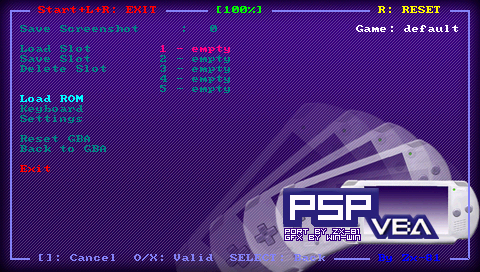
Use the file selector in the the emulator main menu to choose one rom file to load in your emulator. Back to the emulator window, the rom should stard automatically. | Use the file selector in the the emulator main menu to choose one rom file to load in your emulator. Back to the emulator window, the rom should stard automatically. | ||
===Load Key Mapping files=== | |||
The default keyboard mapping between PSP Keys and GBA keys, is not suitable for some games, and you can write your own mapping file to overcome the issue. | The default keyboard mapping between PSP Keys and GBA keys, is not suitable for some games, and you can write your own mapping file to overcome the issue. | ||
| Line 35: | Line 35: | ||
Use the Keyboard menu and further edit, load and save your keyboard mapping files inside the emulator. The Save option save the KBD file in the kbd directory using the Game Name as filename. The game name is displayed on the right corner in the emulator menu. | Use the Keyboard menu and further edit, load and save your keyboard mapping files inside the emulator. The Save option save the KBD file in the kbd directory using the Game Name as filename. The game name is displayed on the right corner in the emulator menu. | ||
===GBA BIOS support=== | |||
If you want to use a GBA bios dump file, then put the file GBA.BIOS in the PSPVBA directory. | If you want to use a GBA bios dump file, then put the file GBA.BIOS in the PSPVBA directory. | ||