Impact PSP: Difference between revisions
From GameBrew
More actions
No edit summary |
No edit summary |
||
| Line 27: | Line 27: | ||
==User guide== | ==User guide== | ||
=== | ===How to play=== | ||
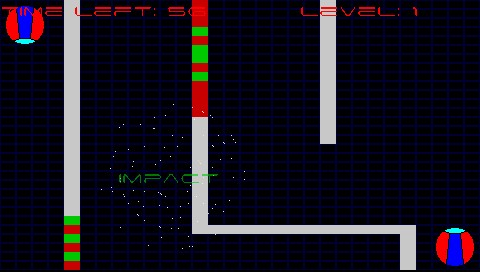
The goal is to make the blocky objects collide against each other. | The goal is to make the blocky objects collide against each other. | ||
You will need to take control of the balls on both side, one starts in top left and the other starts in bottom right. | You will need to take control of the balls on both side, one starts in top left and the other starts in bottom right. | ||
The bottom right has inverse controls to the top left object. | The bottom right has inverse controls to the top left object. There are 3 different objects/blocks that you will find during the game. | ||
There are 3 different objects/blocks that you will find during the game. | |||
* White blocks - Walls. | * White blocks - Walls. | ||
* Green blocks - Speed up. | * Green blocks - Speed up. | ||
| Line 42: | Line 39: | ||
===Map Editor=== | ===Map Editor=== | ||
To create you own maps, select the Create Map option from the menu. The colored blocks represents the following. | To create you own maps, select the Create Map option from the menu. The colored blocks represents the following. | ||
* Purple block - The balls (one on each side). | * Purple block - The balls (one on each side). | ||
* Small yellow block - Your editor pointer/cursor. | * Small yellow block - Your editor pointer/cursor. | ||
With the cursor you can place any of the following objects. | With the cursor you can place any of the following objects. | ||
* Gray - Walls/obstacles. | * Gray - Walls/obstacles. | ||
* Red - Object that will slow down your speed. | * Red - Object that will slow down your speed. | ||
* Green - Object that will increase your speed. | * Green - Object that will increase your speed. | ||
Once completed, exit the map editor and a box will appear where you will have to enter the name of the map (Name). Select if you want to save (Save) or return to the menu (Back). | Once completed, exit the map editor and a box will appear where you will have to enter the name of the map (Name). | ||
Select if you want to save (Save) or return to the menu (Back). | |||
==Controls== | ==Controls== | ||