
NX Mod Manager Switch: Difference between revisions
More actions
No edit summary |
No edit summary |
||
| Line 19: | Line 19: | ||
|image_alt=NX Mod Manager | |image_alt=NX Mod Manager | ||
}} | }} | ||
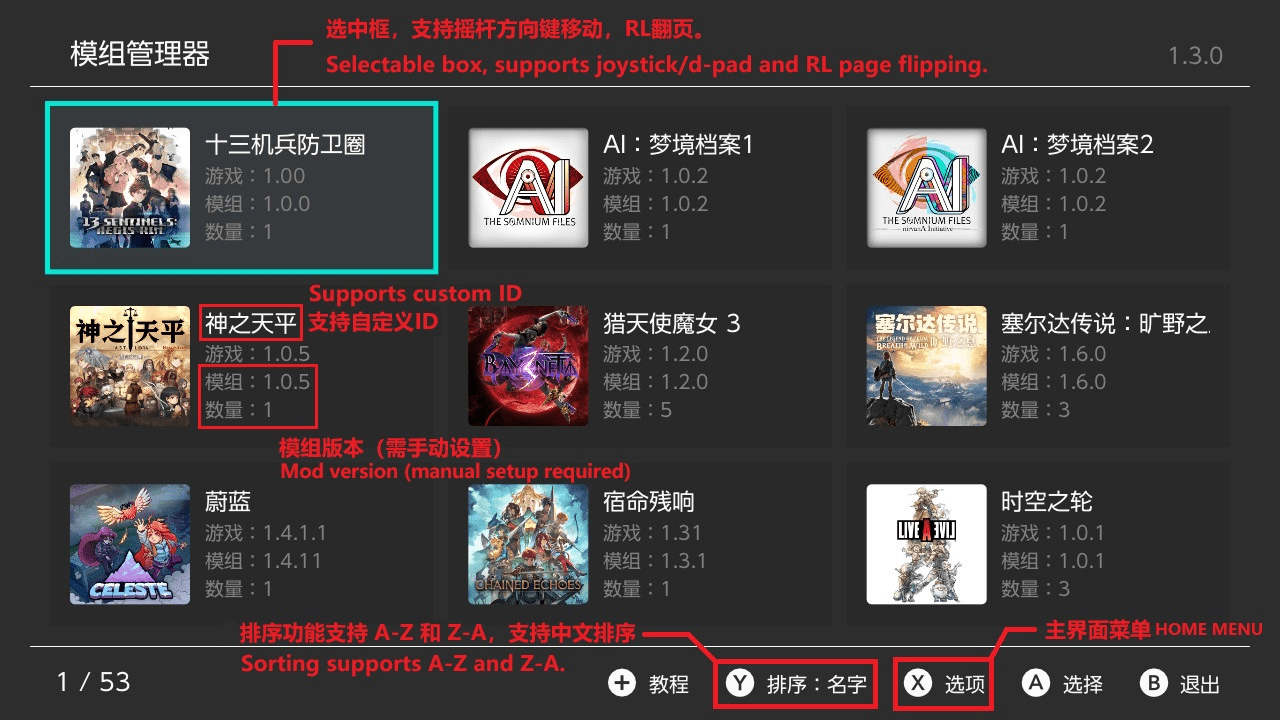
NX Mod Manager is | NX Mod Manager is mod management tool for the Nintendo Switch. It supports multi-language interfaces, audio feedback, and name mapping, providing an intuitive system to add, install, uninstall, and manage mods. | ||
MODs are installed using copy method. For large MODs, the installation speed is slower, but considering the convenience of backing up the MODS2 folder, the copy installation method is adopted. | |||
The plugin supports local data caching, and for 20+ systems, except for the slower initial scan, subsequent entries can load extremely fast. | |||
== Installation | == Installation == | ||
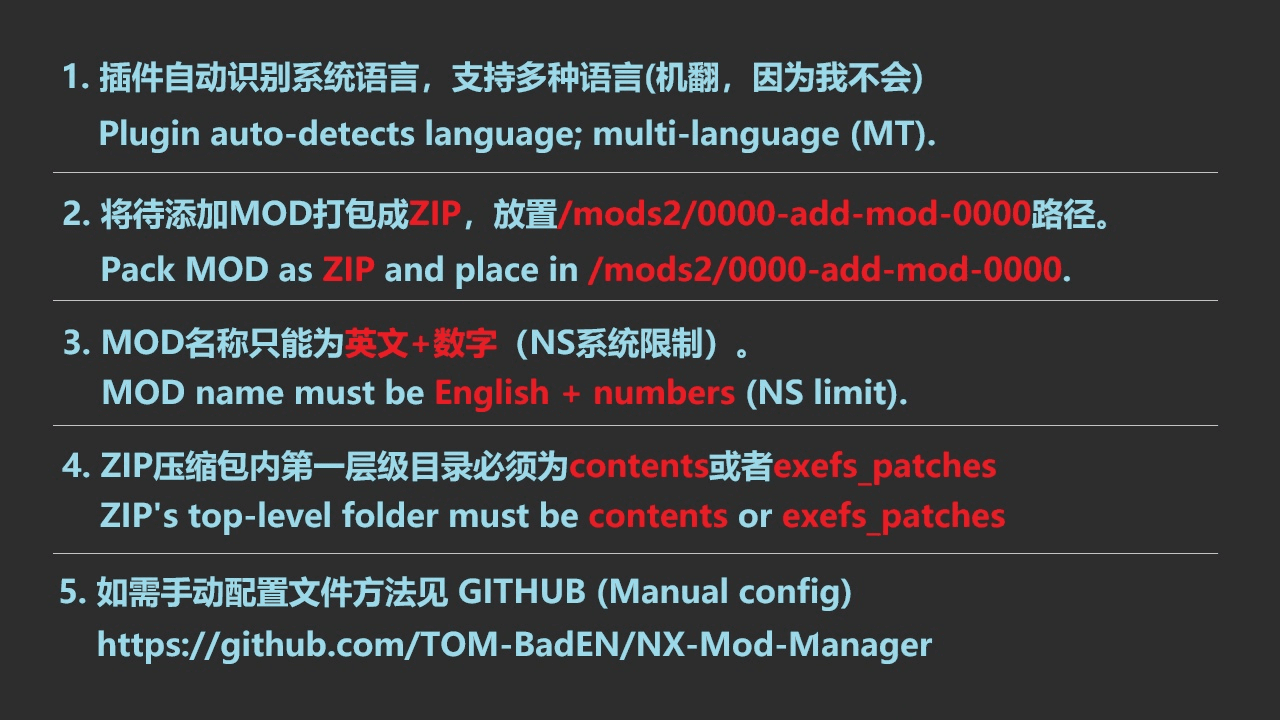
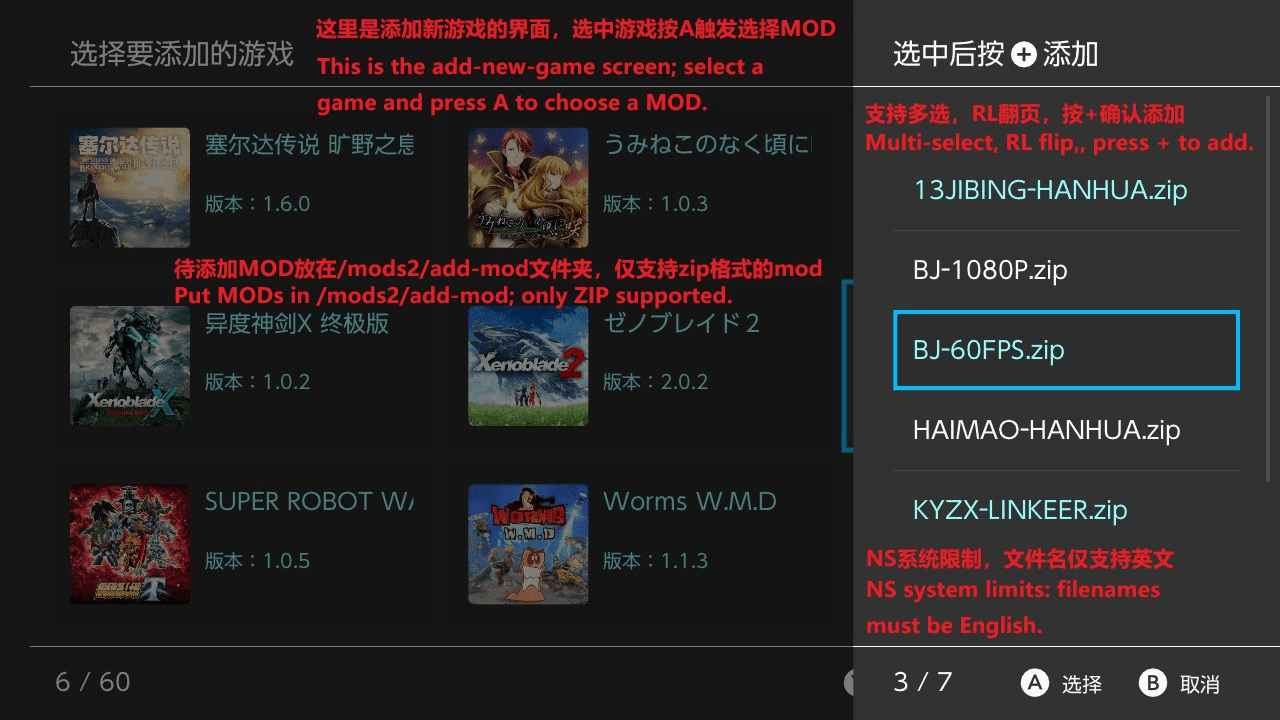
After downloading and running the plugin, it will automatically create a <code>mods2</code> folder for storing MODs. It will also automatically create a <code>/mods2/0000-add-mod-0000/</code> folder for placing ZIP-type MODs to be installed. | |||
== Directory | Place ZIP-type MODs into the <code>/mods2/0000-add-mod-0000/</code> folder, open the plugin, and follow the function prompts for normal use. | ||
Notes: | |||
* Starting from version 2.0, this plugin only supports installing ZIP-type MODs. | |||
* ZIP names can only contain English letters and numbers. | |||
* The first level inside the ZIP package must be <code>contents</code> and <code>exefs_patches</code>, otherwise it cannot be recognized. | |||
* ZIP compression should use standard format. Only ZIP format is supported, 7z\RAR formats are not supported. | |||
=== Directory structure example === | |||
<pre> | <pre> | ||
SD Card | |||
└── mods2 | └── mods2 | ||
├── game_name.json | ├── game_name.json # Game name mapping file | ||
├── | ├── [Game Name 1][Version Tag] | ||
│ └── | │ └── [Game ID] | ||
│ ├── mod_name.json | │ ├── mod_name.json # Mod name mapping file | ||
│ ├── | │ ├── [Mod Name 1][Mod Type Tag] | ||
│ │ ├── contents | │ │ ├── contents | ||
│ │ └── exefs_patches | │ │ │ └── [Specific mod content] | ||
│ └── MOD.ZIP # | │ │ └── exefs_patches | ||
│ │ └── [Specific mod content] | |||
│ └── [Mod Name 2][Mod Type Tag] | |||
│ ├── contents | |||
│ │ └── [Specific mod content] | |||
│ └── exefs_patches | |||
│ └── [Specific mod content] | |||
│ | |||
├── [Game Name 2][Version Tag] | |||
│ └── [Game ID] | |||
│ ├── mod_name.json # Mod name mapping file | |||
│ └── [Mod Name][Mod Type Tag] | |||
│ └── MOD.ZIP # New ZIP MOD format support | |||
│ └── contents ── [Specific mod content] | |||
│ └── exefs_patches | |||
│ └── [Specific mod content] | |||
│ | |||
└── [Game Name 3][Version Tag] | |||
└── [Game ID] | |||
├── mod_name.json # Mod name mapping file | |||
└── [Mod Name][Mod Type Tag] | |||
├── contents | |||
│ └── [Specific mod content] | |||
└── exefs_patches | |||
└── [Specific mod content] | |||
</pre> | |||
Notes: | |||
* Each game can have multiple mods. | |||
* Each mod can contain both <code>contents</code> and <code>exefs_patches</code> types. | |||
Directory Structure Description: | |||
* Each game can have multiple mods | |||
* Each mod can contain both <code>contents</code> and <code>exefs_patches</code> types | |||
* Added ZIP MOD format support. ZIP packages are placed under the MOD name directory. The first level inside the ZIP package must be <code>contents</code> and <code>exefs_patches</code>, otherwise it cannot be recognized. | |||
=== Mod directory text description === | |||
Mod usage directory: <code>SD Card/mods2</code> | |||
Complete mod path format: | |||
<pre>mods2/Game Name[Mod Version Tag]/Game ID/Mod Name[Mod Type Tag]/Specific mod files | |||
</pre> | </pre> | ||
Important Notes: | |||
* Because the Switch file system does not support Chinese, the entire path uses English and numbers, including punctuation, otherwise it cannot be recognized | |||
* Multiple mods can be placed under the game ID path, such as: Mod Name 1[Mod Type Tag], Mod Name 2[Mod Type Tag] | |||
* If tags are not marked on the path, it does not affect actual use, but it is recommended to mark them for easy management | |||
== Mod Type Tags | === Tag format description === | ||
'''Version Tag Format''': <code>[Version Number]</code> | |||
* Please fill in the mod version tag according to the actual applicable version of the mod, only numbers are needed | |||
* Example: V1.2.0 written as <code>[1.2.0]</code> | |||
'''Mod Type Tags''': | |||
{| class="wikitable" | {| class="wikitable" | ||
|- | |- | ||
| Line 69: | Line 115: | ||
|- | |- | ||
| [P] | | [P] | ||
| | | More gameplay | ||
|- | |- | ||
| [C] | | [C] | ||
| Line 75: | Line 121: | ||
|} | |} | ||
== | '''Note:''' Tag format is <code>[X]</code>, where X is the tag content. To avoid recognition errors, please do not use <code>[]</code> brackets for non-tag content in the path. | ||
=== Mod type examples === | |||
== | '''Contents Mod Example''': | ||
<pre>Sentinels[1.0.0]/01008D7016438000/cheat code[C]/contents/01008D7016438000/cheats/F64F574.txt | |||
</pre> | |||
'''Exefs_patches Mod Example''': | |||
<pre>Bayonetta[1.2.0]/01004A4010FEA000/720&900[G]/exefs_patches/Bayo3/F00DF.ips | |||
</pre> | |||
'''New ZIP MOD Format Support''': | |||
<pre>Sentinels[1.0.0]/01008D7016438000/cheat code[C]/MOD.ZIP | |||
</pre> | |||
Note: The first level inside the ZIP package must be <code>contents</code> and <code>exefs_patches</code>, otherwise it cannot be recognized. The name of the ZIP package does not matter. | |||
=== Name mapping configuration === | |||
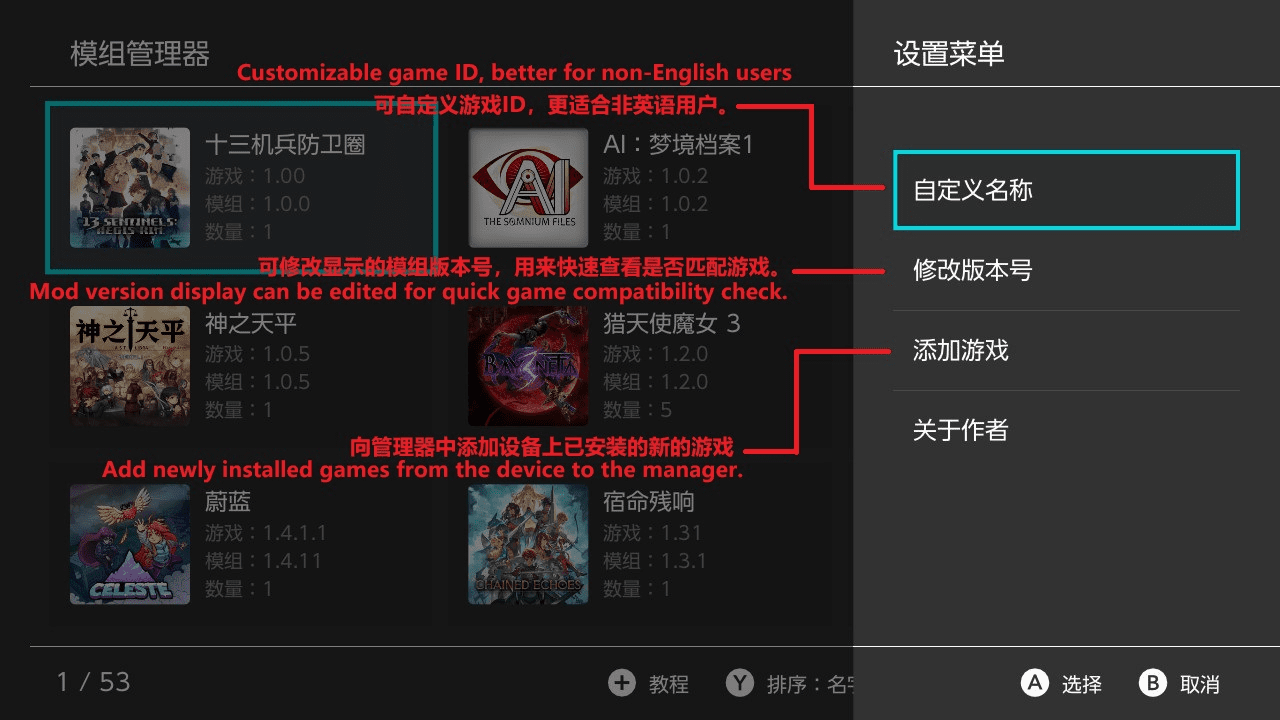
==== Game name mapping ==== | |||
The mapped name will replace the original file directory name displayed in the program. | |||
'''File Path''': <code>SD/mods2/game_name.json</code> | |||
'''Format''': | |||
<pre class="language-json">{ | |||
"Game folder name": "Desired mapped name" | |||
} | |||
</pre> | |||
'''Example''': | |||
<pre class="language-json">{ | |||
"Celeste[1.0.0]": "Celeste", | |||
"Bayonetta 3[1.2.0]": "Bayonetta 3" | |||
} | |||
</pre> | |||
==== Mod name mapping ==== | |||
'''File Path''': <code>SD Card/mods2/Game folder name[Mod version tag]/Game ID/mod_name.json</code> | |||
'''Format''': | |||
<pre class="language-json">{ | |||
"Mod folder name": { | |||
"display_name": "Desired mapped name", | |||
"description": "Mod description" | |||
} | |||
} | |||
</pre> | |||
'''Example''': | |||
<pre class="language-json">{ | |||
"FPS-60[F]": { | |||
"display_name": "Stable 30FPS", | |||
"description": "More detailed graphics adjustments to help the game maintain stable 30FPS and improve gaming experience." | |||
}, | |||
"720&900[G]": { | |||
"display_name": "More Resolutions", | |||
"description": "Adjust game resolution to handheld 720p, docked 900p, improving image quality." | |||
} | |||
} | |||
</pre> | |||
'''Note''': When editing mapping files, pay attention to the position of braces and the correctness of JSON format. | |||
==Screenshots== | ==Screenshots== | ||
Revision as of 13:47, 18 October 2025
| NX Mod Manager | |
|---|---|
 | |
| General | |
| Author | TOM-BadEN |
| Type | Utilities |
| Version | 2.26 |
| License | MIT License |
| Last Updated | 2025/09/25 |
| Links | |
| Download | |
| Website | |
| Source | |
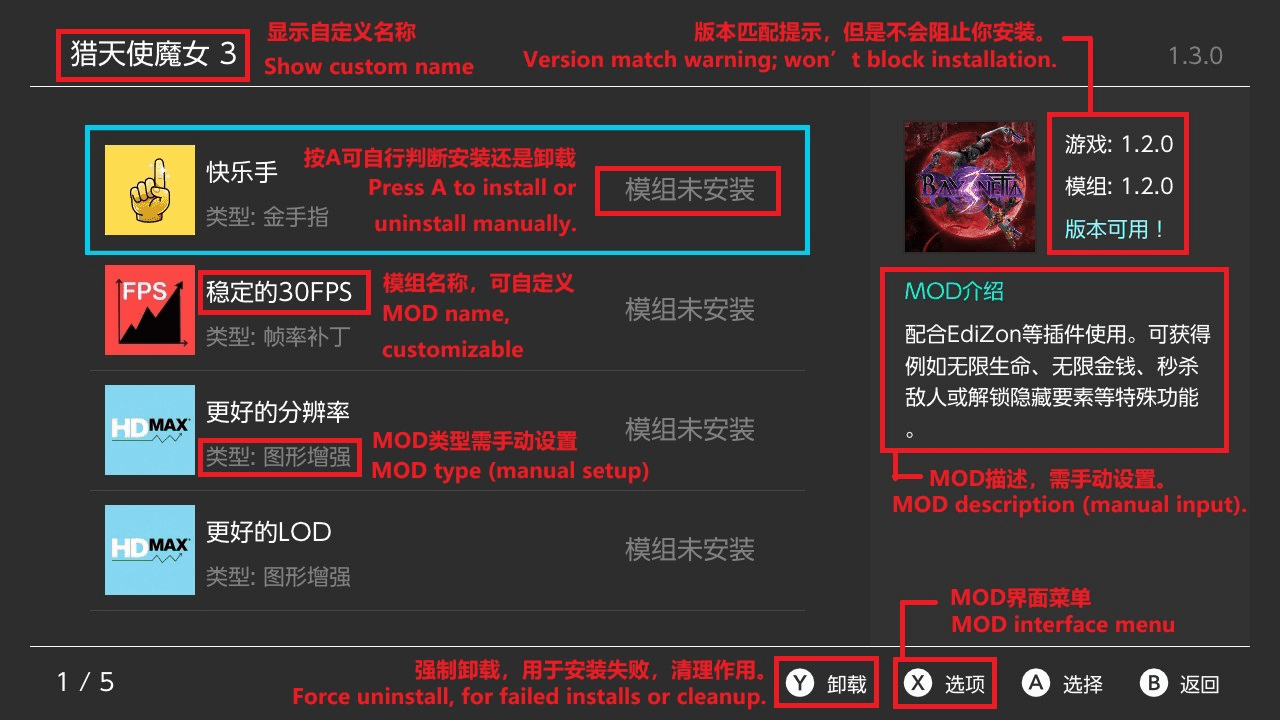
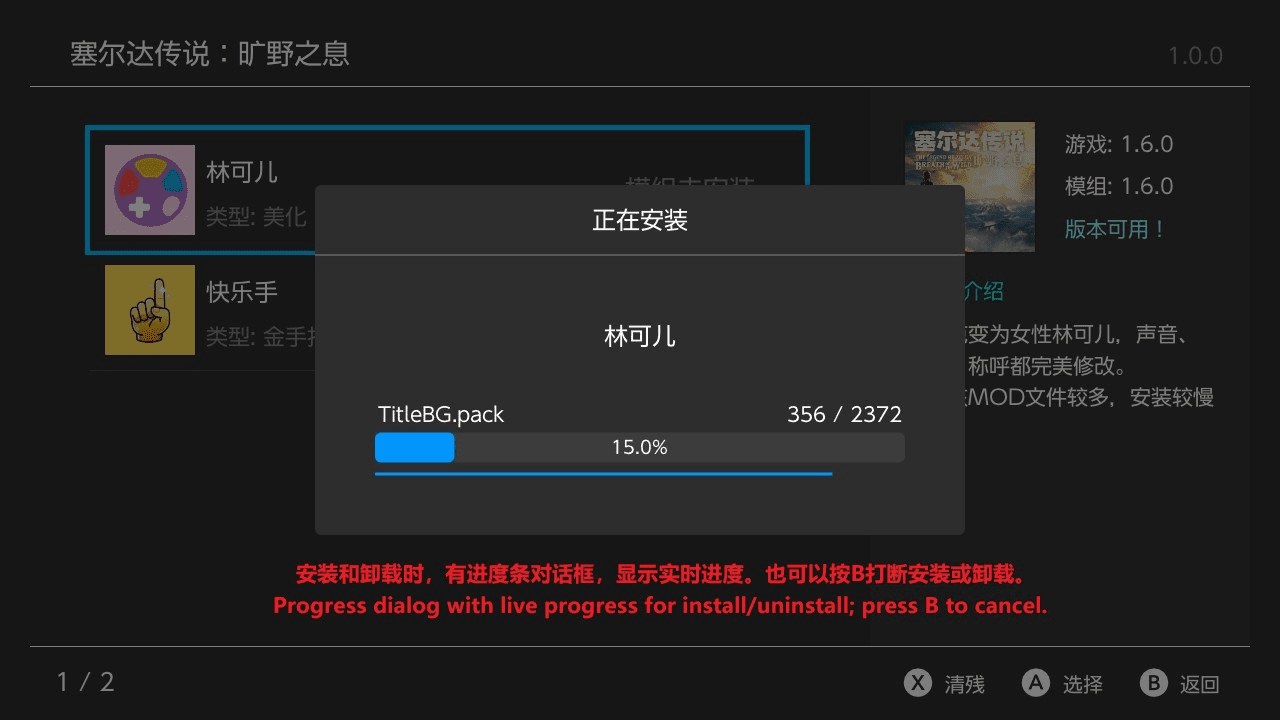
NX Mod Manager is mod management tool for the Nintendo Switch. It supports multi-language interfaces, audio feedback, and name mapping, providing an intuitive system to add, install, uninstall, and manage mods.
MODs are installed using copy method. For large MODs, the installation speed is slower, but considering the convenience of backing up the MODS2 folder, the copy installation method is adopted.
The plugin supports local data caching, and for 20+ systems, except for the slower initial scan, subsequent entries can load extremely fast.
Installation
After downloading and running the plugin, it will automatically create a mods2 folder for storing MODs. It will also automatically create a /mods2/0000-add-mod-0000/ folder for placing ZIP-type MODs to be installed.
Place ZIP-type MODs into the /mods2/0000-add-mod-0000/ folder, open the plugin, and follow the function prompts for normal use.
Notes:
- Starting from version 2.0, this plugin only supports installing ZIP-type MODs.
- ZIP names can only contain English letters and numbers.
- The first level inside the ZIP package must be
contentsandexefs_patches, otherwise it cannot be recognized. - ZIP compression should use standard format. Only ZIP format is supported, 7z\RAR formats are not supported.
Directory structure example
SD Card
└── mods2
    ├── game_name.json                                          # Game name mapping file
    ├── [Game Name 1][Version Tag]
    │   └── [Game ID]
    │       ├── mod_name.json                                   # Mod name mapping file
    │       ├── [Mod Name 1][Mod Type Tag]
    │       │   ├── contents
    │       │   │   └── [Specific mod content]
    │       │   └── exefs_patches
    │       │       └── [Specific mod content]
    │       └── [Mod Name 2][Mod Type Tag]
    │           ├── contents
    │           │   └── [Specific mod content]
    │           └── exefs_patches
    │               └── [Specific mod content]
    │
    ├── [Game Name 2][Version Tag]
    │   └── [Game ID]
    │       ├── mod_name.json                                    # Mod name mapping file
    │       └── [Mod Name][Mod Type Tag]
    │           └── MOD.ZIP                                      # New ZIP MOD format support
    │               └── contents ── [Specific mod content]
    │               └── exefs_patches
    │                       └── [Specific mod content]
    │
    └── [Game Name 3][Version Tag]
        └── [Game ID]
            ├── mod_name.json                                    # Mod name mapping file
            └── [Mod Name][Mod Type Tag]
                ├── contents
                │   └── [Specific mod content]
                └── exefs_patches
                    └── [Specific mod content]
Notes:
- Each game can have multiple mods.
- Each mod can contain both
contentsandexefs_patchestypes.
Directory Structure Description:
- Each game can have multiple mods
- Each mod can contain both
contentsandexefs_patchestypes - Added ZIP MOD format support. ZIP packages are placed under the MOD name directory. The first level inside the ZIP package must be
contentsandexefs_patches, otherwise it cannot be recognized.
Mod directory text description
Mod usage directory: SD Card/mods2
Complete mod path format:
mods2/Game Name[Mod Version Tag]/Game ID/Mod Name[Mod Type Tag]/Specific mod files
Important Notes:
- Because the Switch file system does not support Chinese, the entire path uses English and numbers, including punctuation, otherwise it cannot be recognized
- Multiple mods can be placed under the game ID path, such as: Mod Name 1[Mod Type Tag], Mod Name 2[Mod Type Tag]
- If tags are not marked on the path, it does not affect actual use, but it is recommended to mark them for easy management
Tag format description
Version Tag Format: [Version Number]
- Please fill in the mod version tag according to the actual applicable version of the mod, only numbers are needed
- Example: V1.2.0 written as
[1.2.0]
Mod Type Tags:
| Tag | Meaning |
|---|---|
| [F] | Frame rate patch |
| [G] | Graphics enhancement |
| [B] | Game beautification |
| [P] | More gameplay |
| [C] | Cheat codes |
Note: Tag format is [X], where X is the tag content. To avoid recognition errors, please do not use [] brackets for non-tag content in the path.
Mod type examples
Contents Mod Example:
Sentinels[1.0.0]/01008D7016438000/cheat code[C]/contents/01008D7016438000/cheats/F64F574.txt
Exefs_patches Mod Example:
Bayonetta[1.2.0]/01004A4010FEA000/720&900[G]/exefs_patches/Bayo3/F00DF.ips
New ZIP MOD Format Support:
Sentinels[1.0.0]/01008D7016438000/cheat code[C]/MOD.ZIP
Note: The first level inside the ZIP package must be contents and exefs_patches, otherwise it cannot be recognized. The name of the ZIP package does not matter.
Name mapping configuration
Game name mapping
The mapped name will replace the original file directory name displayed in the program.
File Path: SD/mods2/game_name.json
Format:
{
  "Game folder name": "Desired mapped name"
}
Example:
{
  "Celeste[1.0.0]": "Celeste",
  "Bayonetta 3[1.2.0]": "Bayonetta 3"
}
Mod name mapping
File Path: SD Card/mods2/Game folder name[Mod version tag]/Game ID/mod_name.json
Format:
{
  "Mod folder name": {
    "display_name": "Desired mapped name",
    "description": "Mod description"
  }
}
Example:
{
  "FPS-60[F]": {
    "display_name": "Stable 30FPS",
    "description": "More detailed graphics adjustments to help the game maintain stable 30FPS and improve gaming experience."
  },
  "720&900[G]": {
    "display_name": "More Resolutions",
    "description": "Adjust game resolution to handheld 720p, docked 900p, improving image quality."
  }
}
Note: When editing mapping files, pay attention to the position of braces and the correctness of JSON format.
Screenshots
|
|

Changelog
v2.2.6
- Optimized conflict detection logic, now allowing multiple mods to share common files.
- Removed the feature to cancel mod uninstallation by pressing B.
- Fixed a critical bug in file-type mod installation.
v2.2.5
- Added Bilibili video tutorial and GitHub QR code images to the guide.
- Adjusted some details.
v2.2.4
- Fixed an issue where MTP transfers of large files could occasionally freeze (thanks to TotalJustice’s libhaze fix).
- Added conflict detection when installing MODs: if the target path contains the same file, the system will compare and identify conflicting MODs.
- Added automatic cleanup of installed files when installation is interrupted by pressing B.
- Added automatic cleanup of installed files if installation fails due to an error.
- Adjusted the text position in confirmation dialogs: previously centered, now centered horizontally but left-aligned.
- Changed the Y button label from “Uninstall” to “Force Clean”.
- Added confirmation dialog text for Force Clean.
- Added dynamic timer display in the console during MTP transfers.
- Fixed an error in MOD list sorting.
v2.1.4
- Added transfer speed information to the MTP transfer interface
- Slightly improved MTP stability for LITE models
- Completed the missing text in languages other than Simplified Chinese
v2.1.3
- Home Screen
- Added favorite marking feature
- Added search function, supporting touch, pinyin, fuzzy, initials, and full spelling search
- Added MTP transfer option in the menu (experimental; known issue: on LITE, uploading files larger than 1.5 GB will freeze)
- Added Remove Game option in the menu; removed mods will be moved to the addmod folder
- Added View Location option in the menu
- Added pre-sorting: games are displayed in A–Z order when opening the plugin
- Add Game Screen
- Added search function
- Added a reminder when installing mods if the version does not match
- Mod Screen
- Added Remove Mod option in the menu
- Added View Location option in the menu
- Others
- Simplified version comparison rules: now only compares the numeric part
- Added repeat input for Up/Down keys when held
- Adjusted the add function: it can only be used after the home scan finishes, to avoid blocking
- Removed the mod count display at the bottom left of the add-mod list, since long text in other languages caused overlap
- Adjusted some details to improve user experience (forgot the exact changes)
- Bug Fixes
- Fixed an exception where modifying the version number did not update the corresponding JSON file
- Fixed an issue where some game icons failed to load
- Fixed an issue where folders containing a dot were misidentified as files
- Fixed an exception with down-key navigation in the 3×3 grid under special conditions
- Fixed some minor bugs that didn’t affect usage (details forgotten)
v2.0.3
- Fixed an issue where the scanned game version on the Switch remained outdated after the game version changed.
v2.0.2
- Fixed a bug that caused the program to crash when adding mods.
v2.0.1
- Fix the issue where the text on the virtual keyboard is invisible when the Switch theme is set to the light theme.
- Newly added games will now appear at the top of the page, eliminating the need to search for them.
v2.0.0
- Main Interface
- The vertical list interface has been rebuilt into a grid interface, allowing more content to be displayed at once.
- Added menu functionality for the X button.
- Supports custom game names and mod version editing (display purposes only).
- Added the ability to add games directly from installed games into the mod manager, avoiding the need for complex manual configuration.
- Installed Games Interface
- A new interface has been added to support the “Add Game” function from the main interface.
- MOD Interface
- Added menu functionality for the X button.
- Supports custom mod names, mod type modification, and adding mod descriptions.
- Supports appending mods freely, with mod files placed in /mods2/0000-add-mod-0000.
- Tutorial Interface
- The tutorial interface has been rebuilt. Previously, it was all text-heavy and hard to follow; now it is image-based.
- Others
- Added pinyin sorting, allowing Chinese game names to be sorted alphabetically.
- Fixed a bug that could cause installed mods to fail.
- Fixed several minor bugs that did not affect functionality.
v1.3.0
- Significantly improved ZIP MOD uninstallation speed
- Linkoer can now be uninstalled within 20 seconds.
- Princess Flower uninstallation improved from 3 minutes 30 seconds to 1 minute 30 seconds.
- Significantly improved installation speed for file-based MODs
- Linkoer installation improved from 1 minute 40–50 seconds to 1 minute–1 minute 20 seconds.
- Princess Flower installation previously unmeasured, now takes 7 minutes 10 seconds; using ZIP-based MOD installation is recommended.
- Significantly improved installation speed for ZIP-based MODs
- Linkoer installation improved from 1 minute 5–20 seconds to a more stable time, close to 1 minute 5 seconds.
- Princess Flower installation improved from 6 minutes 13 seconds to 4 minutes 50 seconds–5 minutes 10 seconds.
- Adjusted the file count background layer in the progress dialog to ensure it is not obscured by file names.
- Fixed a minor bug that does not affect usage.
v1.2.0
- Added support for installing MODs in ZIP format, primarily targeting large MODs, significantly improving installation speed.
- Refactored the installation and uninstallation code.
- For example, the Lin Ke’er MOD consists of 2,732 files totaling 500 MB.
- Slightly improved file-based installation speed, reducing the time from 1:50–2:00 to 1:40–1:55.
- Slightly improved uninstallation speed, now completing in most cases within 20 seconds (previously around 20 seconds).
- Greatly improved installation speed for ZIP-based MODs. When the Lin Ke’er MOD was packaged as a ZIP, installation time decreased from 1:40–1:55 to 1:05–1:20.
- The larger the MOD, the greater the relative performance improvement. For details on configuring ZIP installation, see the provided template or README.
v1.1.0
- Modified the bottom-left text in the game and mod interface from "Total" to "Current Index / Total".
- Fixed two minor bugs that did not affect usability.
- Added a per-file copy progress bar in the installation dialog, which only appears for large files.
- Significantly improved mod uninstallation speed. For example, uninstalling the "Lin Ke'er MOD" is reduced from over 1 minute 30 seconds to about 20 seconds.
- Slightly improved mod installation speed. For example, installing the "Lin Ke'er MOD" is reduced from 2:00–2:10 to 1:50–2:00.
- The "Lin Ke'er MOD" contains a total of 2732 files.
- Added timing display for installation and uninstallation completion. If under 1 second, it will display as 0.1s.
v1.0
- First Release.
Credits & Libraries
Acknowledges multiple open-source projects and libraries including devkitPro, libnx, Atmosphere-NX, NanoVG, switch-libpulsar, and others for foundational support in UI, audio, rendering, and file management.