TinyWiiBackupManager: Difference between revisions
From GameBrew
More actions
No edit summary |
No edit summary |
||
| Line 4: | Line 4: | ||
|description=A simple Wii backup manager written in Rust. | |description=A simple Wii backup manager written in Rust. | ||
|author=mq1 | |author=mq1 | ||
|lastupdated=2025/10/ | |lastupdated=2025/10/16 | ||
|type=WBFS Managers | |type=WBFS Managers | ||
|version= | |version=3.0.5 | ||
|license=GPL-2.0 | |license=GPL-2.0 | ||
|download=https://github.com/mq1/TinyWiiBackupManager/releases | |download=https://github.com/mq1/TinyWiiBackupManager/releases | ||
Revision as of 01:14, 19 October 2025
| TinyWiiBackupManager | |
|---|---|
 | |
| General | |
| Author | mq1 |
| Type | WBFS Managers |
| Version | 3.0.5 |
| License | GPL-2.0 |
| Last Updated | 2025/10/16 |
| Links | |
| Download | |
| Website | |
| Source | |
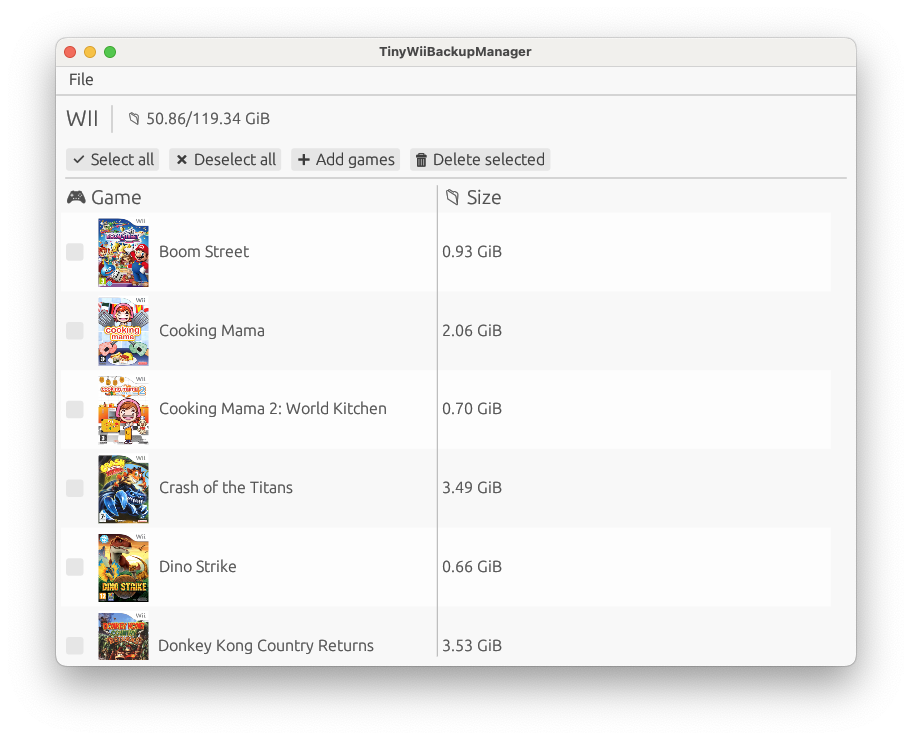
TinyWiiBackupManager is a simple WBFS manager written in Rust.
Setting up the drive
Warning: This will delete ALL data on the device.
MacOS
- Open the Disk Utility app (Applications > Utilities).
- Use CMD+2 to make sure physical devices are visible.
- Pick the USB drive from the sidebar.
- From the toolbar select Erase.
- Name the drive a meaningful name (like WII), please make sure the format is "MS-DOS (FAT)" and the scheme is "Master Boot Record".
- Click on the "Erase" button.
Windows
- Download Rufus from https://rufus.ie/, choose the portable version.
- On "Device" select your drive.
- On "Boot selection" pick "Not bootable".
- Choose a meaningful name (like WII) and put it into the "Volume label" box.
- On "File System" pick "FAT32".
- Click on the "START" button.
Linux (GNOME)
- Open the Disks app.
- Click on your drive in the left sidebar.
- Click on the menu (three vertical dots in the top-left of the window) and select "Format Disk".
- Make sure Erase is set to Quick and Partitioning is set to MBR/DOS and click "Format".
- Under "Volumes" for your device, click on the "+" button.
- Click "Next".
- Choose a meaningful name (like WII) and put it into the "Volume Name" box.
- On "Type", choose "For use with all systems and devices (FAT).
- Click "Next" and then "Format".
Linux (KDE)
- Open KDE Partition Manager.
- Click on your device in the left sidebar.
- Click on "New Partition Table".
- Select "MS-Dos" and click on "Create New Partition Table".
- Click on "unallocated" and then on "New".
- On "File System" select fat32.
- Choose a meaningful name (like WII) and put it into the "Label" box.
- Click "OK" and then "Apply".
Screenshots