
2 Ship 2 Harkinian Switch: Difference between revisions
From GameBrew
More actions
Created page with "{{Infobox Switch Homebrews |title=2 Ship 2 Harkinian |image=2Ship2HarkinianSwitch.png |description=Majora's Mask Switch Port. |author=YoshiCrystal9 |lastupdated=2025/03/03 |type=Adventure |version=1.1.2 |license=CC0-1.0 |download=https://dlhb.gamebrew.org/switchhomebrews/2Ship2HarkinianSwitch.7z |website=https://gbatemp.net/threads/majoras-mask-switch-port-2ship-2harkinian.667996/ |source=https://github.com/YoshiCrystal9/2ship2harkinian-Switch/ |donation= }} {{#seo: |tit..." |
No edit summary |
||
| Line 30: | Line 30: | ||
# Download the [https://github.com/HarbourMasters/2ship2harkinian/actions/runs/13642391583 2Ship 2Harkinian] program on your computer. Select the version for your system. | # Download the [https://github.com/HarbourMasters/2ship2harkinian/actions/runs/13642391583 2Ship 2Harkinian] program on your computer. Select the version for your system. | ||
# Run the 2ship program and select your Majora's Mask ROM. This will create a file named mm.o2r. | # Run the 2ship program and select your Majora's Mask ROM. This will create a file named mm.o2r. | ||
# Download the latest Nintendo Switch version of the game. | # Download the latest [https://github.com/YoshiCrystal9/2ship2harkinian-Switch/releases Nintendo Switch version of the game]. | ||
# On your Switch's SD card, open the "switch" folder and create a new folder there. | # On your Switch's SD card, open the "switch" folder and create a new folder there. | ||
# Place the Nintendo Switch port file (.nro) and your mm.o2r file into the new folder. | # Place the Nintendo Switch port file (.nro) and your mm.o2r file into the new folder. | ||
| Line 48: | Line 48: | ||
==Credits== | ==Credits== | ||
[https://discord.com/invite/shipofharkinian Harbour Masters 64]: Created the original PC version. | * [https://discord.com/invite/shipofharkinian Harbour Masters 64]: Created the original PC version. | ||
[https://zelda64.dev/ Majora's Mask Decompilation Team: Provided the original game code]. | * [https://zelda64.dev/ Majora's Mask Decompilation Team: Provided the original game code]. | ||
Lywx: Created the original Switch port code for Ship of Harkinian (Ocarina of Time). | * Lywx: Created the original Switch port code for Ship of Harkinian (Ocarina of Time). | ||
== External links == | == External links == | ||
* Gbatemp - https://gbatemp.net/threads/majoras-mask-switch-port-2ship-2harkinian.667996/ | * Gbatemp - https://gbatemp.net/threads/majoras-mask-switch-port-2ship-2harkinian.667996/ | ||
* Github - https://github.com/YoshiCrystal9/2ship2harkinian-Switch/ | * Github - https://github.com/YoshiCrystal9/2ship2harkinian-Switch/ | ||
Revision as of 04:13, 9 March 2025
| 2 Ship 2 Harkinian | |
|---|---|
 | |
| General | |
| Author | YoshiCrystal9 |
| Type | Adventure |
| Version | 1.1.2 |
| License | CC0-1.0 |
| Last Updated | 2025/03/03 |
| Links | |
| Download | |
| Website | |
| Source | |
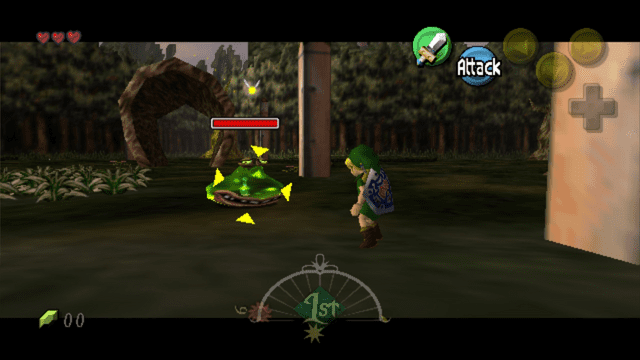
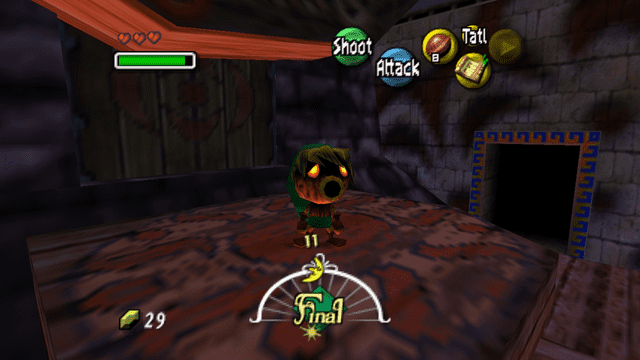
Majora's Mask for Nintendo Switch. This is YoshiCrystal9's port of Majora's Mask (2 Ship 2 Harkinian) for the Nintendo Switch. Yes, you can use mods!
Usage
What You Need
- An original copy of Majora's Mask (NTSC-U version for N64 or GameCube)
- A modded Nintendo Switch
- A Windows, Mac, or Linux computer to create the mm.o2r file
How to Install
- Download the 2Ship 2Harkinian program on your computer. Select the version for your system.
- Run the 2ship program and select your Majora's Mask ROM. This will create a file named mm.o2r.
- Download the latest Nintendo Switch version of the game.
- On your Switch's SD card, open the "switch" folder and create a new folder there.
- Place the Nintendo Switch port file (.nro) and your mm.o2r file into the new folder.
Media
Ship of Harkinian 2 for Majora's Mask is Finally Here (Klink)
Screenshots
Changelog
v1.1.2
- First Release.
Credits
- Harbour Masters 64: Created the original PC version.
- Majora's Mask Decompilation Team: Provided the original game code.
- Lywx: Created the original Switch port code for Ship of Harkinian (Ocarina of Time).