
Wii Plugin Manager: Difference between revisions
From GameBrew
More actions
Created page with "{{Infobox Wii Homebrews |title=Wii Plugin Manager |image=WiiPluginManager.png |description=Wii Plugin Manager - A python pc tools for wii. |author=wei134102 |lastupdated=2025/05/10 |type=PC Utilities |version=2.2 |license=N/A |download=https://dlhb.gamebrew.org/wiihomebrews/WiiPluginManager.7z |website=https://gbatemp.net/threads/wii-plugin-manager-a-python-pc-tools-for-wii.670731/ |source=https://github.com/wei134102/wii-retro-plugins-editer |donation= }} {{#seo: |title..." |
|||
| (2 intermediate revisions by 2 users not shown) | |||
| Line 2: | Line 2: | ||
|title=Wii Plugin Manager | |title=Wii Plugin Manager | ||
|image=WiiPluginManager.png | |image=WiiPluginManager.png | ||
|description= | |description=A Python PC tools to manage Wii plugin. | ||
|author=wei134102 | |author=wei134102 | ||
|lastupdated=2025/05/10 | |lastupdated=2025/05/10 | ||
| Line 19: | Line 19: | ||
|image_alt=Wii Plugin Manager | |image_alt=Wii Plugin Manager | ||
}} | }} | ||
A Python PC tools to manage Wii plugin. | |||
== | == Features == | ||
*Key Features: | |||
* Visual interface for plugin management | ** Visual interface for plugin management. | ||
* Automatic association between ROMs and images | ** Automatic association between ROMs and images. | ||
* Bilingual UI support (Chinese/English) | ** Bilingual UI support (Chinese/English). | ||
* One-click scan and load plugin directory | ** One-click scan and load plugin directory. | ||
* Real-time preview of configuration changes | ** Real-time preview of configuration changes. | ||
* Double-click to copy ROM filename | ** Double-click to copy ROM filename. | ||
*Plugin Management: | |||
** Scan and load plugin configuration files (.ini). | |||
** Edit plugin configurations (right-click menu). | |||
** Delete plugins (move to bak directory). | |||
** Support for subdirectory scanning. | |||
*ROM Management: | |||
** Display ROM list with custom display names. | |||
** Rename ROM files (with option to rename corresponding images). | |||
** Delete ROM files. | |||
** Copy ROM filename to clipboard with double-click. | |||
** Open ROM folder from right-click menu. | |||
*Image Management: | |||
** Display images corresponding to ROMs. | |||
** Resize images (with or without maintaining aspect ratio). | |||
** Rename image files. | |||
** Open image folder. | |||
** Automatically display corresponding image when ROM is selected. | |||
** Image status indication (has/no image). | |||
*Custom Titles: | |||
** Load and save custom title configurations. | |||
** Edit ROM display names. | |||
** Open custom title file for direct editing. | |||
** Auto-save modified titles. | |||
*Interface Features: | |||
** Bilingual UI support (Chinese/English, toggle with "change language" button). | |||
** Window always-on-top function (click " Pin" button). | |||
** Logging functionality (can be enabled/disabled). | |||
** Status bar notifications. | |||
** Movable toolbar. | |||
== Installation | == Installation == | ||
=== System | === System requirements === | ||
* Python 3.8+ | * Python 3.8+ | ||
* PyQt5 | * PyQt5 | ||
* Pillow (Image processing library) | * Pillow (Image processing library) | ||
=== Setup instructions === | |||
* Windows: <code>venv\Scripts\activate</code> | * Create virtual environment: <code>python -m venv venv</code> | ||
* Mac/Linux: <code>source venv/bin/activate</code> | * Activate virtual environment: | ||
** Windows: <code>venv\Scripts\activate</code> | |||
** Mac/Linux: <code>source venv/bin/activate</code> | |||
* Install dependencies: <code>pip install PyQt5 pillow</code> | |||
* Run the program: <code>python main.py</code> | |||
=== Supported plugin types === | |||
=== Supported | |||
* wii flow plugins | * wii flow plugins | ||
* usbloader_gx plugins | * usbloader_gx plugins | ||
== | == User guide == | ||
=== Basic setup === | |||
* Click "Plugins Dir" button to select plugin configuration directory | |||
* Click "ROMs Dir" button to select ROM files directory | |||
* Click "Images Dir" button to select game images directory | |||
* Click "Title Files" button to select custom title configuration file (optional) | |||
* Click "Scan Plugins" button to load plugin configurations | |||
=== ROM operations === | |||
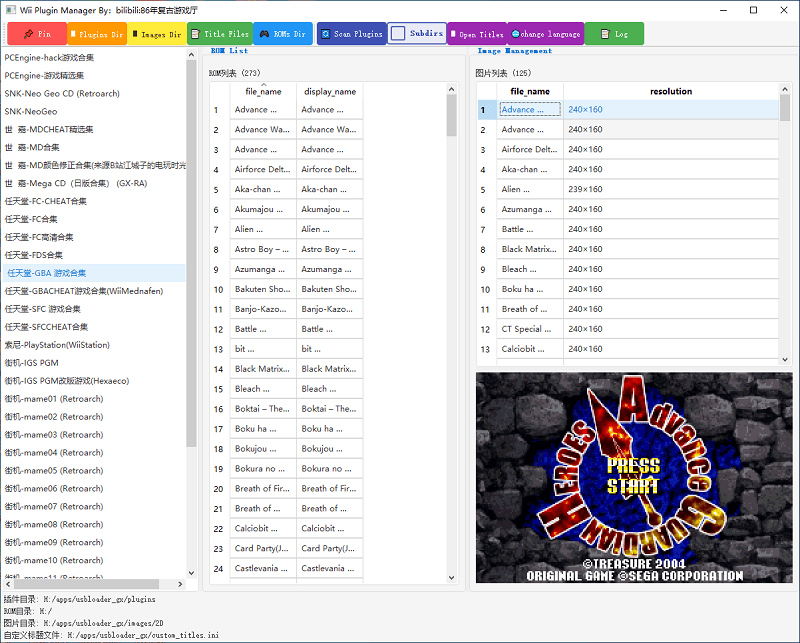
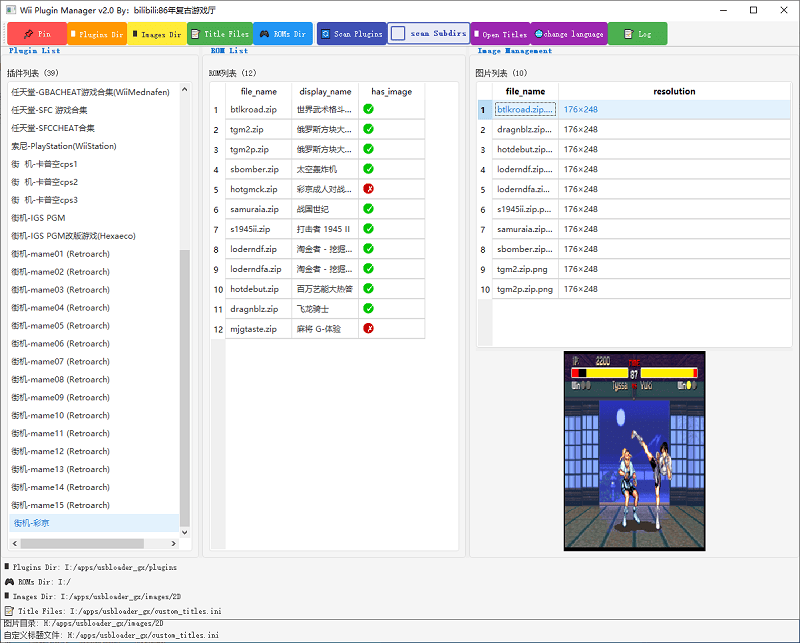
* Select a plugin from the left list, the middle area will display corresponding ROMs | |||
* Right-click on an item in the ROM list to: | |||
** Open ROM folder | |||
** Rename ROM file (with option to rename corresponding image) | |||
** Delete ROM file | |||
* Double-click on ROM filename to copy it to clipboard | |||
* Click on an item in the ROM list, if there's a corresponding image, it will be displayed in the preview area | |||
=== Image operations === | |||
* Right-click on an item in the image list to: | |||
** Open image folder | |||
** Resize image | |||
** Rename image file | |||
=== Custom titles === | |||
* Edit the "Display Name" column directly in the ROM list | |||
* Click "Open Titles" button to edit the title configuration file directly | |||
=== Other features === | |||
* Click " Pin" button to toggle window always-on-top state | |||
* Click "change language" button to switch between Chinese and English interface | |||
* Click "Log" button to enable/disable logging functionality | |||
==Screenshots== | ==Screenshots== | ||
https://dlhb.gamebrew.org/wiihomebrews/ | https://dlhb.gamebrew.org/wiihomebrews/images/WiiPluginManager-01.png | ||
https://dlhb.gamebrew.org/wiihomebrews/ | https://dlhb.gamebrew.org/wiihomebrews/images/WiiPluginManager-02.png | ||
==Changelog== | ==Changelog== | ||
| Line 121: | Line 117: | ||
== External links == | == External links == | ||
* | * GitHub - https://github.com/wei134102/wii-retro-plugins-editer | ||
* GBAtemp - https://gbatemp.net/threads/wii-plugin-manager-a-python-pc-tools-for-wii.670731/ | |||
Latest revision as of 05:53, 1 June 2025
| Wii Plugin Manager | |
|---|---|
 | |
| General | |
| Author | wei134102 |
| Type | PC Utilities |
| Version | 2.2 |
| License | N/A |
| Last Updated | 2025/05/10 |
| Links | |
| Download | |
| Website | |
| Source | |
A Python PC tools to manage Wii plugin.
Features
- Key Features:
- Visual interface for plugin management.
- Automatic association between ROMs and images.
- Bilingual UI support (Chinese/English).
- One-click scan and load plugin directory.
- Real-time preview of configuration changes.
- Double-click to copy ROM filename.
- Plugin Management:
- Scan and load plugin configuration files (.ini).
- Edit plugin configurations (right-click menu).
- Delete plugins (move to bak directory).
- Support for subdirectory scanning.
- ROM Management:
- Display ROM list with custom display names.
- Rename ROM files (with option to rename corresponding images).
- Delete ROM files.
- Copy ROM filename to clipboard with double-click.
- Open ROM folder from right-click menu.
- Image Management:
- Display images corresponding to ROMs.
- Resize images (with or without maintaining aspect ratio).
- Rename image files.
- Open image folder.
- Automatically display corresponding image when ROM is selected.
- Image status indication (has/no image).
- Custom Titles:
- Load and save custom title configurations.
- Edit ROM display names.
- Open custom title file for direct editing.
- Auto-save modified titles.
- Interface Features:
- Bilingual UI support (Chinese/English, toggle with "change language" button).
- Window always-on-top function (click " Pin" button).
- Logging functionality (can be enabled/disabled).
- Status bar notifications.
- Movable toolbar.
Installation
System requirements
- Python 3.8+
- PyQt5
- Pillow (Image processing library)
Setup instructions
- Create virtual environment:
python -m venv venv - Activate virtual environment:
- Windows:
venv\Scripts\activate - Mac/Linux:
source venv/bin/activate
- Windows:
- Install dependencies:
pip install PyQt5 pillow - Run the program:
python main.py
Supported plugin types
- wii flow plugins
- usbloader_gx plugins
User guide
Basic setup
- Click "Plugins Dir" button to select plugin configuration directory
- Click "ROMs Dir" button to select ROM files directory
- Click "Images Dir" button to select game images directory
- Click "Title Files" button to select custom title configuration file (optional)
- Click "Scan Plugins" button to load plugin configurations
ROM operations
- Select a plugin from the left list, the middle area will display corresponding ROMs
- Right-click on an item in the ROM list to:
- Open ROM folder
- Rename ROM file (with option to rename corresponding image)
- Delete ROM file
- Double-click on ROM filename to copy it to clipboard
- Click on an item in the ROM list, if there's a corresponding image, it will be displayed in the preview area
Image operations
- Right-click on an item in the image list to:
- Open image folder
- Resize image
- Rename image file
Custom titles
- Edit the "Display Name" column directly in the ROM list
- Click "Open Titles" button to edit the title configuration file directly
Other features
- Click " Pin" button to toggle window always-on-top state
- Click "change language" button to switch between Chinese and English interface
- Click "Log" button to enable/disable logging functionality
Screenshots
Changelog
v2.2
- Fix bugs and add features!
v1.0
- Fixed the bug that blank columns appeared after sorting!